> For the complete documentation index, see [llms.txt](https://docs.onelens.cloud/llms.txt). Markdown versions of documentation pages are available by appending `.md` to page URLs; this page is available as [Markdown](https://docs.onelens.cloud/settings/invoice-adjustments.md).
# Invoice Adjustments
Invoice Adjustments allow you to reconcile raw cloud provider billing with the actual invoice amount paid.
Cloud bills often differ from invoices due to:
* MSP markups or discounts
* Private Pricing Agreements (PPA)
* Enterprise Discount Programs (EDP)
* Savings Plans & Reserved Instances
* Marketplace private offers
* Special negotiated unit pricing
Invoice Adjustments let you define rules that transform **Bill View** into **Invoice View**.
***
## Why Invoice Adjustments Matter
Without adjustments:
* Finance cannot reconcile invoices
* Engineering optimizes against incorrect numbers
* Margin reporting is inaccurate
* Shared discounts are not fairly allocated
* Amortized contracts create monthly spikes
Invoice Adjustments solve this by introducing a rule-based pricing engine on top of cloud billing data.
***
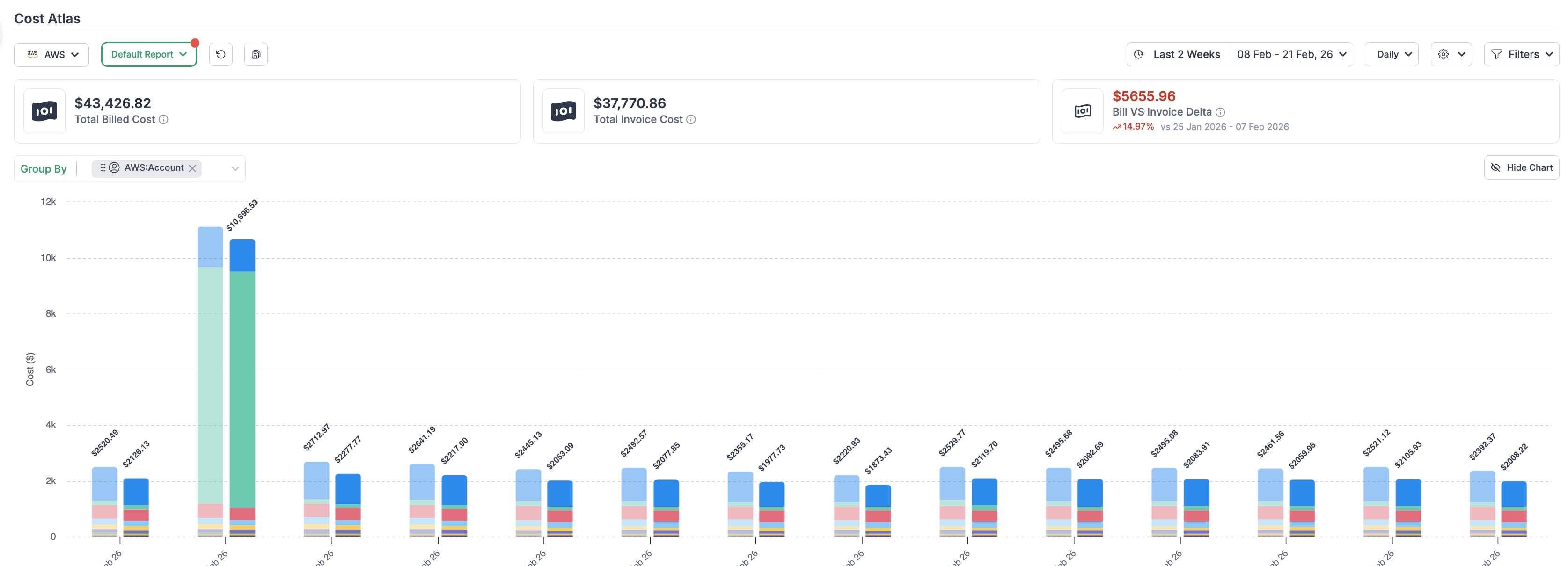
## Bill View vs Invoice View
OneLens supports two cost perspectives:
| View | Description | Used By |
| ---------------- | --------------------------- | ------------------- |
| **Bill View** | Raw cloud provider data | Engineering, DevOps |
| **Invoice View** | Bill View + all adjustments | Finance, CFO, MSPs |
Users can toggle between views globally.
All dashboards, exports, and reports respect the selected view.
***
## How Invoice Adjustments Work
Invoice Adjustments use a **rules engine**.
Each rule defines:
* Scope (what costs it applies to)
* Value (percent, absolute, or replace price)
* Priority (execution order)
* Stacking behavior
* Allocation logic
* Effective period
Rules are executed in priority order.
Lower priority number = runs first.
***
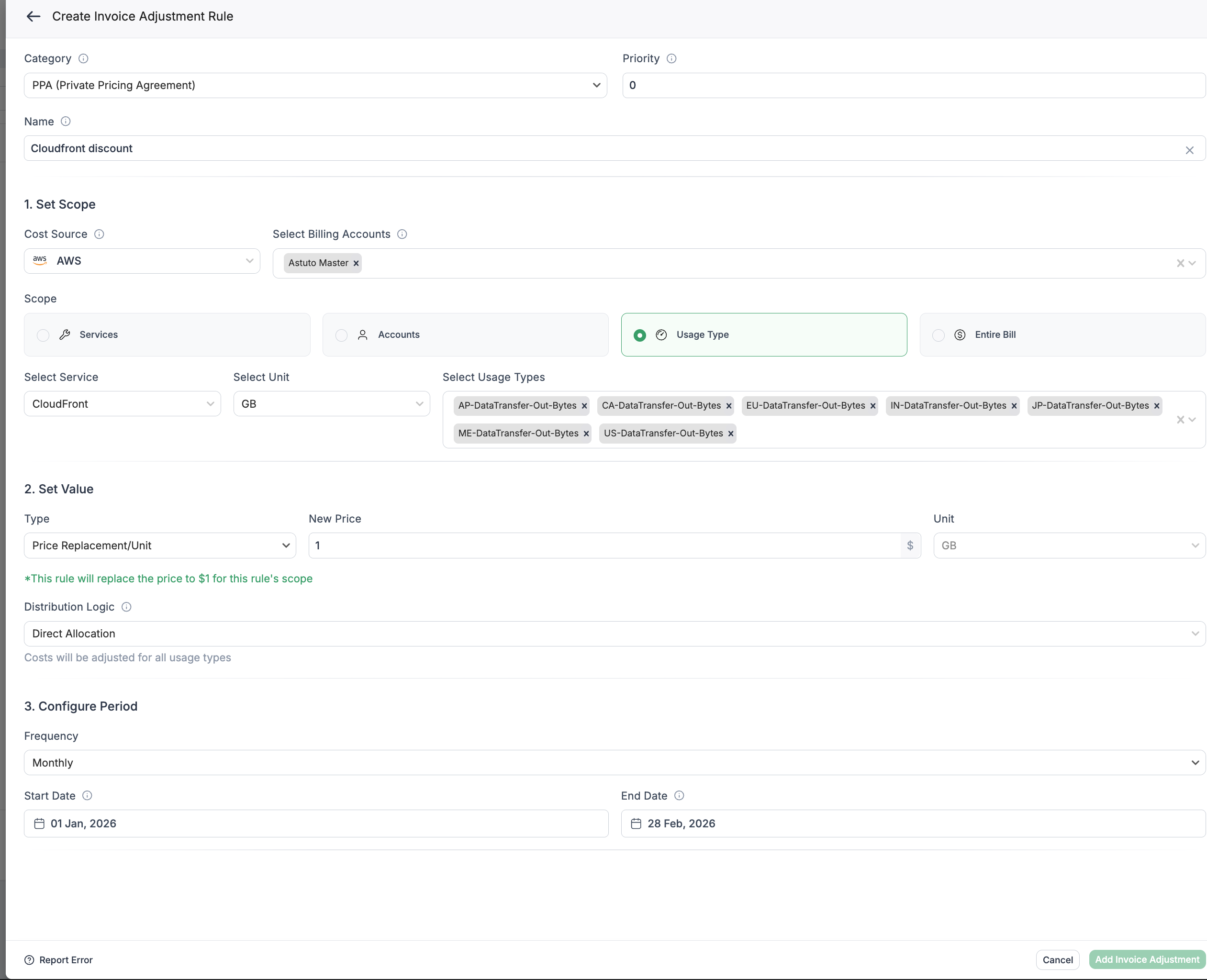
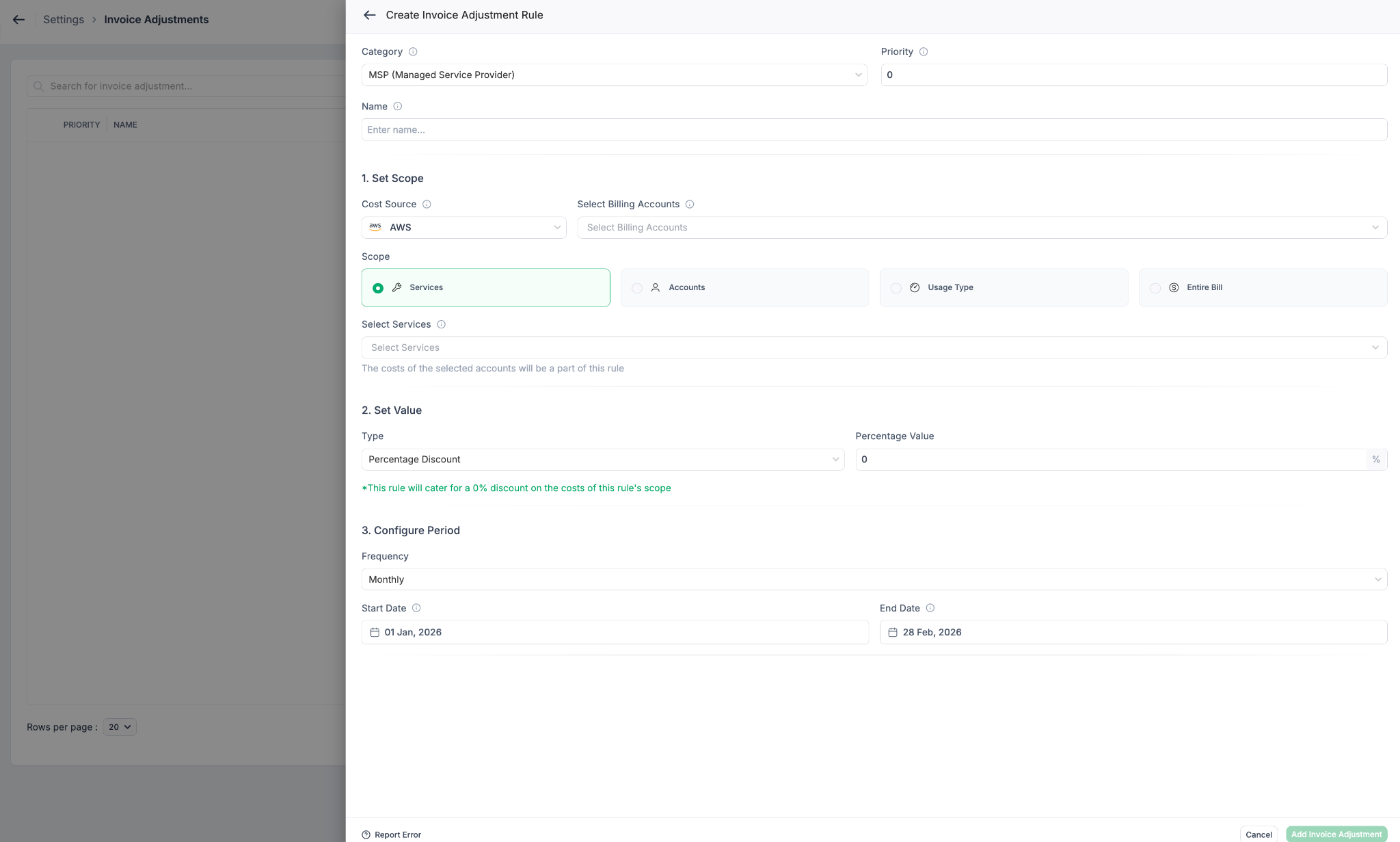
## Creating an Invoice Adjustment Rule
Navigate to:
**Settings → Invoice Adjustments → Create Rule**
***
### 1️⃣ Category
Select the adjustment type:
* MSP (Managed Service Provider)
* PPA (Private Pricing Agreement)
* Savings Plan
* EDP
* Marketplace
* Custom
This is used for classification and reporting.
***
### 2️⃣ Set Scope
Define where the rule applies.
#### Cost Source
Select:
* AWS
* Azure
* GCP
* OCI
#### Billing Accounts
Choose one or multiple billing accounts.
***
#### Scope Options
You can apply a rule to:
* **Services** (e.g., EC2, CloudFront, RDS)
* **Accounts**
* **Usage Type**
* **Entire Bill**
***
***
## 3️⃣ Set Value
Choose the adjustment type:
#### Percentage Discount
Example:
* 13% MSP discount
* 95% CloudFront PPA
Calculation:
```
new_cost = original_cost × (1 - discount%)
```
***
#### Absolute Discount
Example:
* $10,000 monthly discount
Applied across scope.
Never reduces cost below $0.
***
#### Replace Price / Unit
Used for usage-based special pricing.
Example:
* CloudFront negotiated rate = $0.04/GB
Calculation:
```
new_cost = usage_quantity × new_price
```
This replaces the unit rate entirely.
***
## 4️⃣ Distribution Logic
Defines how the adjustment is allocated.
Available strategies:
#### Direct Allocation
Applies directly to matched line items.
#### Cost-Weighted Allocation
Distributes proportionally based on existing cost.
#### Fixed Proportional Allocation
User defines exact percentages per cost center.
#### Even Split
Divides equally across selected targets.
***
## 5️⃣ Configure Period
Define when the rule is active.
* Frequency: Monthly
* Start Date
* End Date (optional)
This supports:
* Temporary contracts
* Time-bound PPAs
* Multi-month deals
***
## Rule Priority & Stacking
Rules execute in priority order.
Example:
| Rule | Priority |
| -------------------------- | -------- |
| CloudFront Special Pricing | 0 |
| OpenSearch Extra Discount | 1 |
| MSP Global Discount | 3 |
Execution order:
1. CloudFront pricing
2. OpenSearch discount
3. Global MSP discount
***
### Stacking Behavior
If **Stackable = Yes**
→ Next rule applies on adjusted cost.
If **Stackable = No**
→ Processing stops for that line item.
This is important for:
* Replace price rules
* Exclusive contracts
* Override pricing
***
## Example Scenarios
***
### Example 1: MSP Global Discount (13%)
Bill:
* Total AWS: $850,000
Rule:
* 13% discount
* Scope: Entire Bill
Invoice:
* $739,500
***
### Example 2: Stacked Discounts
OpenSearch:
* Bill: $120,000
Apply:
1. 10% service discount → $108,000
2. 13% global MSP → $93,960
Effective discount: 21.7%
***
### Example 3: Replace Price (CloudFront)
Usage:
* 1,000,000 GB
* AWS rate: $0.085
Bill:
* $85,000
Replace price:
* $0.04/GB
Invoice:
* $40,000
***
## Amortization Support
Invoice Adjustments support amortizing upfront payments.
Example:
* $144,000 Savings Plan upfront
* 12-month contract
Without amortization:
* January shows $144,000 spike
With amortization:
* $12,000 per month
This ensures accurate budgeting and forecasting.
***
## Import from CUR
You can import adjustments directly from billing data.
Supported imports:
* Savings Plans
* Reserved Instances
* EDP discounts
* Marketplace private offers
System detects:
* Upfront fees
* Recurring fees
* Discount line items
You can preview before saving.
***
## Audit & Transparency
Every rule provides:
* Impact preview before save
* Before/After breakdown
* Priority display
* Allocation details
* Rule history
Finance teams can trace:
* Which rule affected which cost
* In what order
* By how much
***
## Best Practices
* Use service-specific rules with higher priority.
* Apply global discounts last.
* Use Replace Price for negotiated per-unit pricing.
* Enable amortization for upfront contracts.
* Review rule impact monthly.
***
## Summary
Invoice Adjustments allow you to:
* Reconcile billing and invoices
* Model MSP markups/discounts
* Handle PPAs and special pricing
* Amortize contracts
* Allocate shared discounts
* Maintain audit transparency
It ensures both Engineering and Finance work from the correct cost view.
## Viewing Invoice Adjusted Costs in Cost Atlas
Once Invoice Adjustment rules are configured, you can analyze the adjusted costs directly in **Cost Atlas**.
Cost Atlas respects the selected cost view and recalculates all charts, breakdowns, and exports accordingly.
***
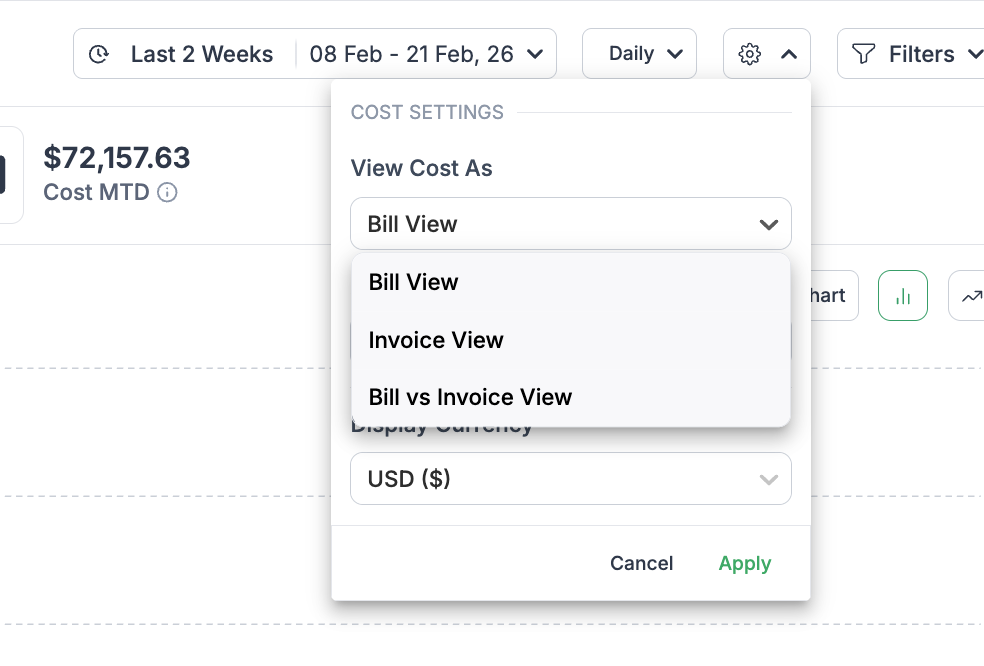
### How to Switch to Invoice View
1. Navigate to:\
**Observe → Cost Atlas**
2. Locate the **Cost View Toggle** (top control bar).
3. Switch from:
* **Bill View** → **Invoice View**
Once selected:
* All totals reflect adjusted costs.
* Service breakdown reflects stacked rules.
* Cost center allocations include distributed discounts.
* Amortized contracts reflect monthly slices (if amortization is enabled).
***
***
## What Changes in Invoice View
When Invoice View is enabled:
| Component | Behavior |
| ------------------- | ------------------------------------- |
| KPI Cards | Show adjusted totals |
| Time Series Charts | Reflect post-adjustment trends |
| Service Breakdown | Shows final invoice amounts |
| Cost Center Reports | Include allocated discounts |
| Margin Analysis | Displays delta between Bill & Invoice |
| CSV Exports | Export adjusted values |
All filters (account, date range, cost center, service) continue to work normally.
***
## Combining with Cost Metric Toggle
Cost Atlas supports two independent toggles:
| Toggle | Controls |
| ---------------------- | -------------------------- |
| Bill vs Invoice | Raw vs Adjusted cost |
| Unblended vs Amortized | Timing of cost recognition |
This enables four possible combinations:
1. Bill View + Unblended
2. Bill View + Amortized
3. Invoice View + Unblended
4. Invoice View + Amortized
This flexibility supports:
* Engineering optimization (Bill + Unblended)
* Budget forecasting (Bill + Amortized)
* Finance reconciliation (Invoice + Amortized)
* Margin analysis (Invoice + Unblended)
***
## Verifying Adjustment Impact
To validate a rule’s effect:
1. Open Cost Atlas in **Bill View**
2. Note service or total cost
3. Switch to **Invoice View**
4. Compare the delta
You can also:
* Drill into a service
* Filter by usage type
* Filter by cost center
* Export both views for reconciliation
***
## Margin Visibility
Cost Atlas automatically enables margin visibility when Invoice View is active.
Example:
| Metric | Value |
| ------------- | ---------- |
| Total Bill | $1,000,000 |
| Total Invoice | $870,000 |
| Margin | $130,000 |
| Margin % | 13% |
This is especially useful for:
* MSP partners
* Resellers
* Enterprise internal chargeback models
---
# Agent Instructions
This documentation is published with GitBook. GitBook is the documentation platform designed so that both humans and AI agents can read, navigate, and reason over technical content effectively. Learn more at gitbook.com.
## Querying This Documentation
If you need additional information that is not directly available in this page, you can query the documentation by asking a question.
Perform an HTTP GET request on the following URL with the `ask` and `goal` query parameters:
```
GET https://docs.onelens.cloud/settings/invoice-adjustments.md?ask=&goal=
```
`ask` is the immediate question: it should be specific, self-contained, and written in natural language.
`goal` is what the user is ultimately trying to achieve, the reason they need the answer. Sharing it helps GitBook give you a better, more relevant answer. A goal is most helpful when it describes the outcome the user wants rather than restating the question. For example, with `ask=how do I create an API token`, a goal like `automate deployments from our CI pipeline` lets GitBook tailor the answer to that use case.
The response will contain a direct answer to the question and relevant excerpts and sources from the documentation.
Use this mechanism when the answer is not explicitly present in the current page, you need clarification or additional context, or you want to retrieve related documentation sections.