| AWS | Account | AWS account. |
| AWS | API Operation | Specific API operations performed. |
| AWS | Availability Zone | AWS Availability Zone where resources are deployed. |
| AWS | Billing Entity | Billing entity associated with the usage. |
| AWS | Charge Type | Charge classification such as usage, recurring, or one-time fees. |
| AWS | Cost Center | Assigned cost center. |
| AWS | Cost Center Category | Defined cost center categories. |
| AWS | Database Engine | Database engine type (e.g., MySQL, PostgreSQL). |
| AWS | Instance Type | EC2 or database instance type. |
| AWS | Legal Entity | Legal entity associated with the account. |
| AWS | Platform | Operating system or platform type. |
| AWS | Purchase Option | Reserved, on-demand, or other purchase options. |
| AWS | Region | AWS region. |
| AWS | Resource | Individual resource identifiers. |
| AWS | Service | AWS service. |
| All clouds | Tag | User-defined tags. |
| AWS | Tenancy | Resource tenancy (shared or dedicated). |
| AWS | Usage Type | AWS usage type classification. |
| All clouds | Virtual Tag | Virtual tags created in OneLens for additional categorization. |
| Azure | Benefit Name | Applied reservation or savings plan name. |
| Azure | Charge Type | Cost record type classification (usage, purchase, refund) |
| Azure | Frequency | Billing recurrence indicator |
| Azure | Meter | Unique billing meter identifier |
| Azure | Meter Category | Top-level Azure service classification |
| Azure | Meter Subcategory | Azure service feature or tier breakdown |
| Azure | Partner Name | CSP or reseller partner identifier |
| Azure | Pricing Model | Billing arrangement type (on-demand, reservation, spot) |
| Azure | Product | Purchased Azure product or SKU name |
| Azure | Product Order Name | Enrollment or order grouping label |
| Azure | Provider | Infrastructure provider type |
| Azure | Publisher Name | Marketplace or service publisher identity |
| Azure | Publisher Type | Publisher origin classification (Microsoft, third-party) |
| Azure | Resource Group Name | Azure resource group container name |
| Azure | Resource Location | Deployed Azure region or datacenter |
| Azure | Resource Type | Azure ARM resource type identifier |
| Azure | Service Family | High-level Azure service grouping (Compute, Storage, Networking) |
| Azure | Subscription | Azure billing subscription scope |
| GCP | Cost Type | Charge classification (regular, tax, credit, adjustment) |
| GCP | Country | Billing or usage geographic country |
| GCP | Folders | GCP resource hierarchy folder path |
| GCP | Labels | User-defined key-value resource tags |
| GCP | Location | GCP multi-region or location grouping |
| GCP | Organization | GCP organization-level billing entity |
| GCP | Project | GCP project scope for cost attribution |
| GCP | Region | GCP compute region identifier |
| GCP | Resource Global Name | Fully-qualified GCP resource URI |
| GCP | Resource Name | Short display name of provisioned resource |
| GCP | Seller | Cost origin classification (Google, third-party reseller) |
| GCP | Service | GCP product service name (Compute Engine, BigQuery, etc.) |
| GCP | SKU | Granular billable unit or pricing item identifier |
| GCP | System Labels | Google-managed automatic metadata labels |
| GCP | Zone | GCP availability zone within a region |
| OCI | Availability Domain | OCI datacenter within a region |
| OCI | Compartment ID | Unique identifier for OCI resource compartment |
| OCI | Compartment Name | Logical resource grouping container name |
| OCI | Product Description | OCI service or feature display name |
| OCI | Product SKU | Billable product pricing unit identifier |
| OCI | Region | OCI deployed datacenter region |
| OCI | Resource ID | Unique OCID of the provisioned resource |
| OCI | Service | Top-level OCI service classification (Compute, Object Storage, etc.) |
| OCI | Subscription | OCI billing subscription or contract scope |
| OCI | Tenant ID | OCI tenancy-level billing entity identifier |
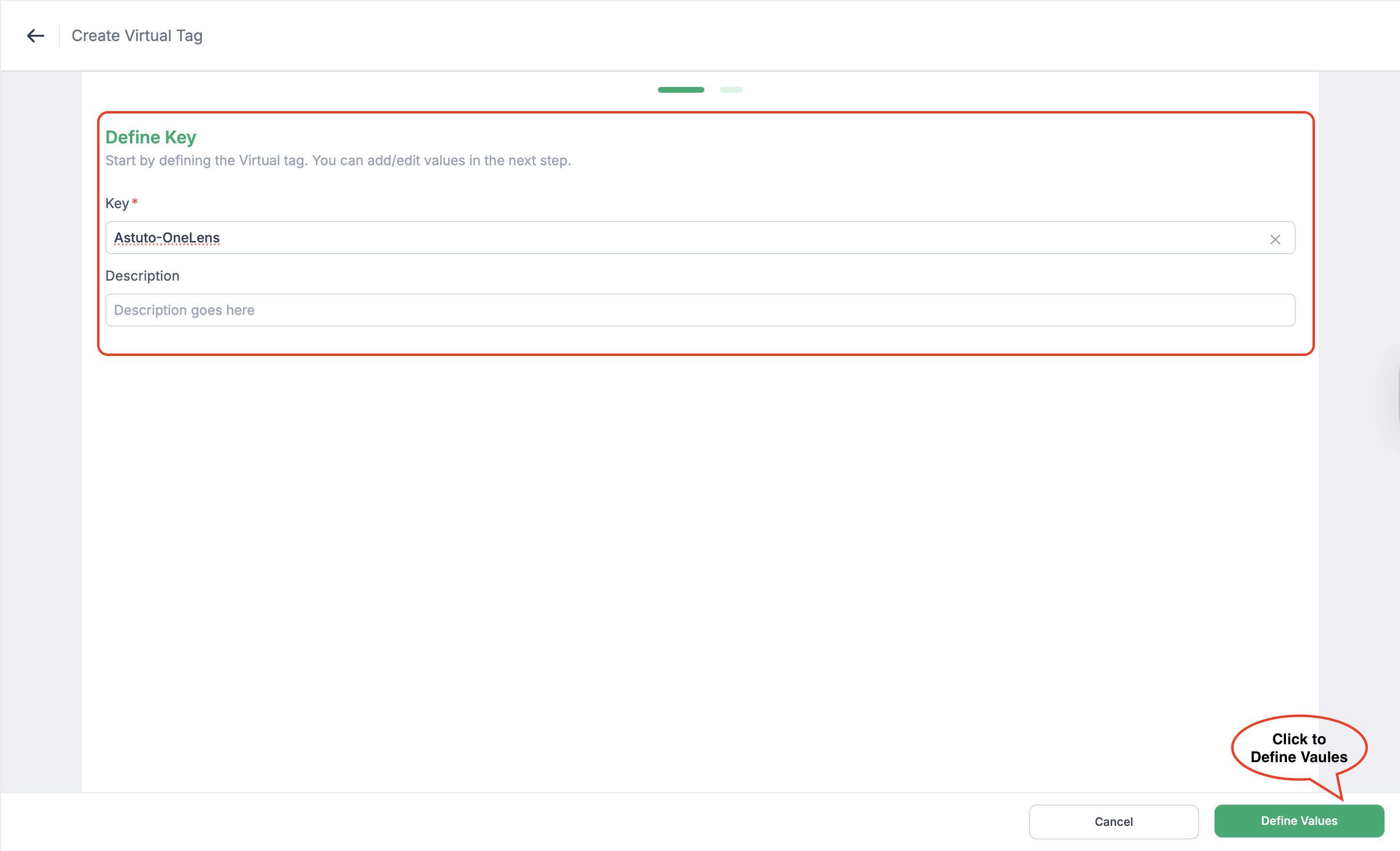
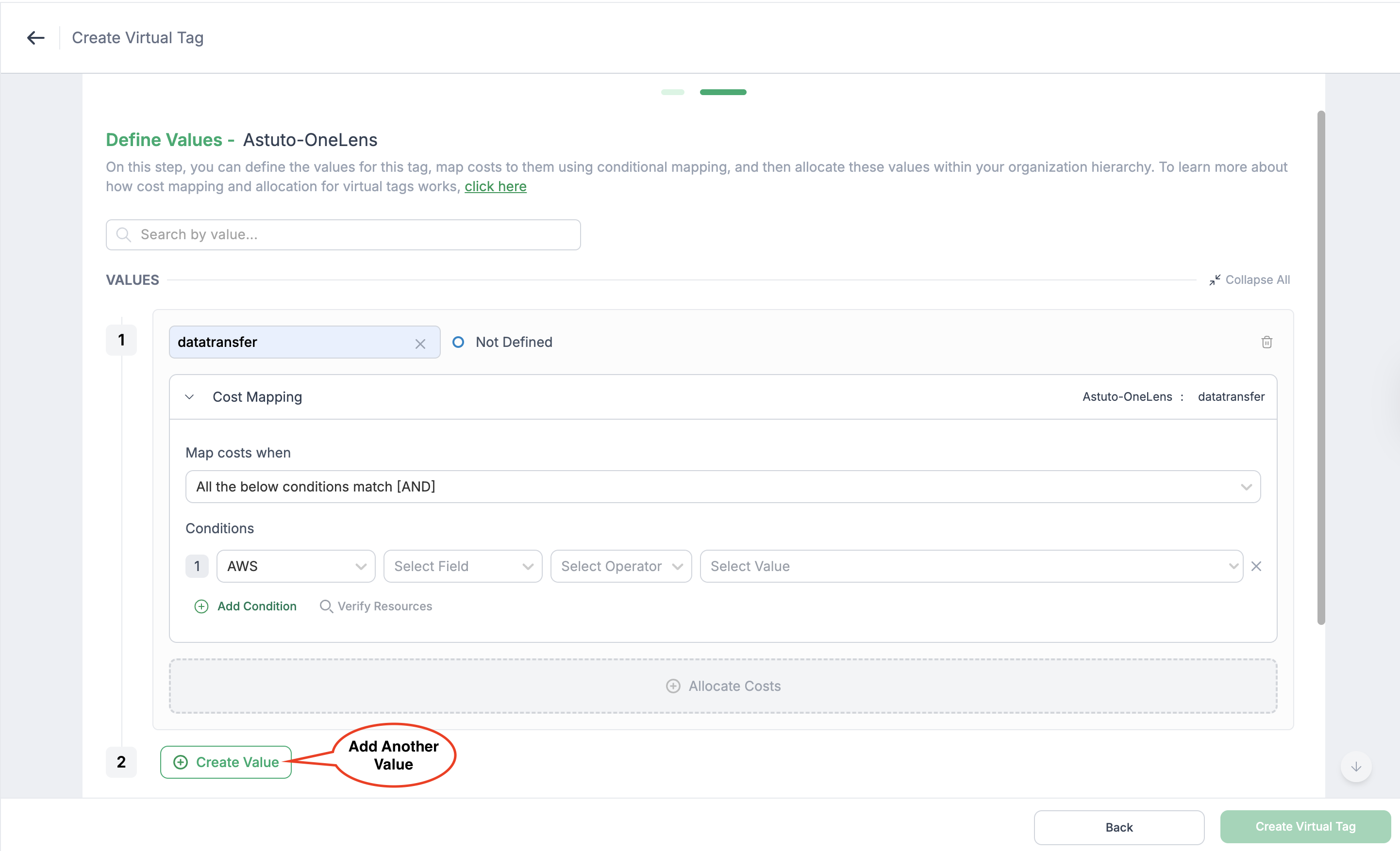
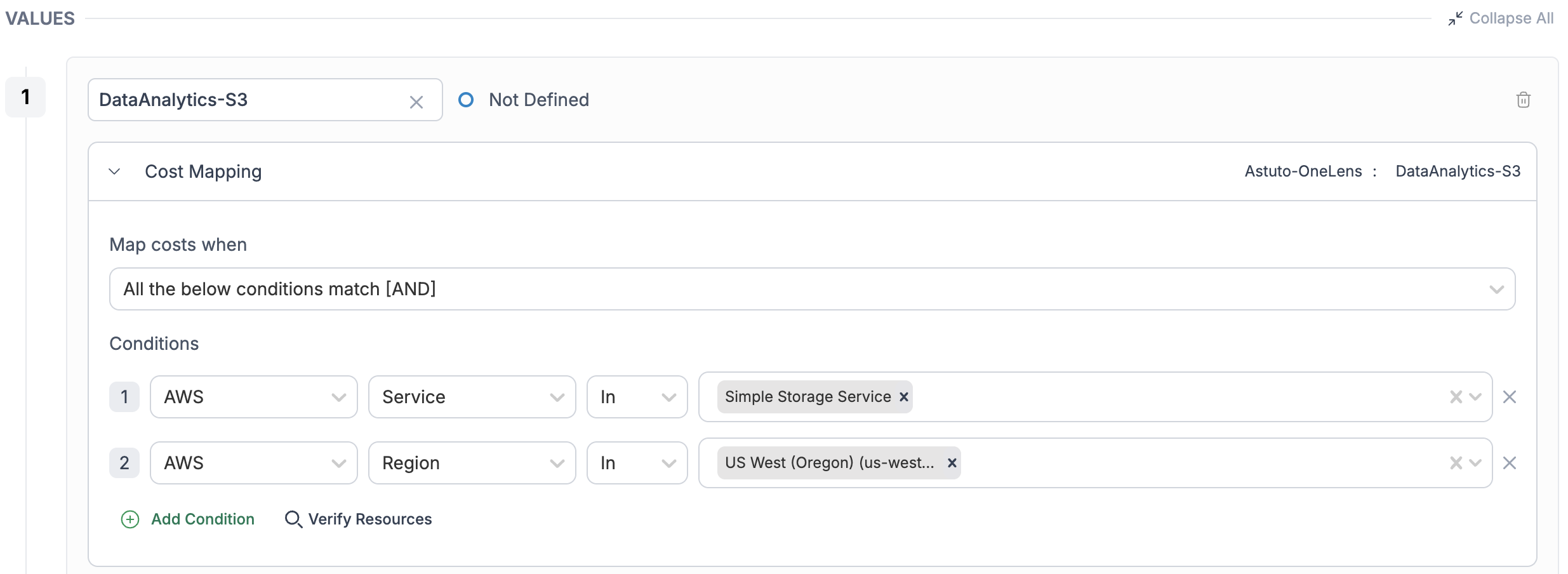 {% endhint %}
You can add multiple conditions to create fine-tuned cost mappings.
### How to Set Conditions
#### Step 1: Choose Field
Select the attribute you want to match your condition against. Each field represents a dimension of the resource or billing data.
{% endhint %}
You can add multiple conditions to create fine-tuned cost mappings.
### How to Set Conditions
#### Step 1: Choose Field
Select the attribute you want to match your condition against. Each field represents a dimension of the resource or billing data.
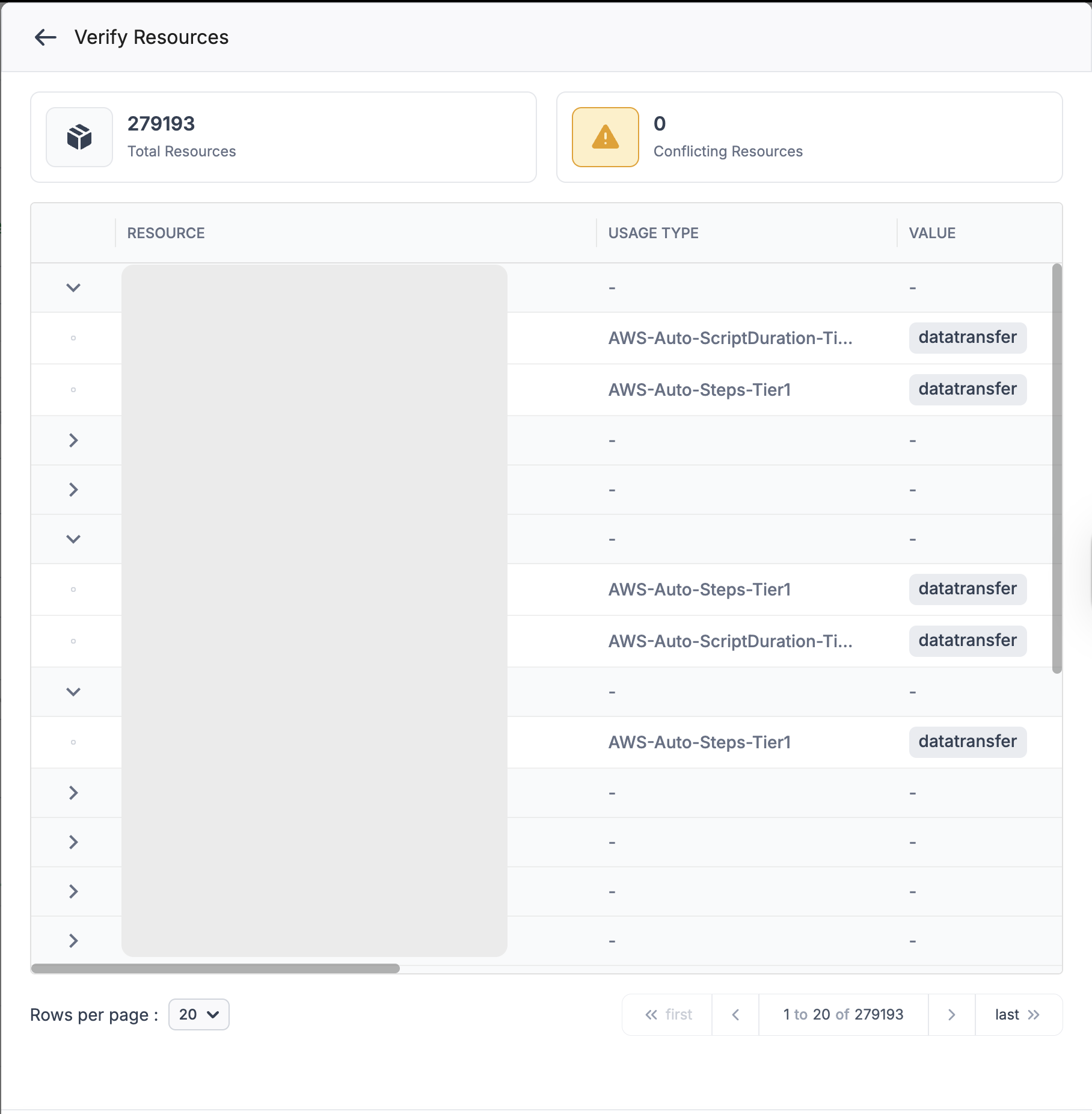 {% endhint %}
#### Step 3: Allocating Shared Costs
Virtual Tags can also be used to allocate **shared costs** like support charges, data transfer, or common infrastructure across business units.\
➡️ Learn more about [Shared Cost Allocation](/observe-visibility-and-insights/cost-allocation/virtual-tags/shared-cost-allocation.md)
{% hint style="info" %}
## **Note**
**Allocating cost is optional**—you can choose to use virtual tags purely for grouping or visibility purposes without impacting cost allocation.
{% endhint %}
### Value Status Guide
Each value inside a Virtual Tag passes through a lifecycle status to help you track its readiness.
| Status | What It Means |
| --------------- | ----------------------------------------------------------------------------- |
| **Not Defined** | You’ve created the value, but no resources are mapped yet. |
| **Defined** | Resources have been mapped to the value, and associated costs are identified. |
| **Allocated** | The value is used in your cost hierarchy and cost is allocated accordingly. |
{% hint style="success" %}
A value is usable in Cost Atlas as soon as it is **Defined**. Allocation is optional.
{% endhint %}
## Managing Virtual Tags
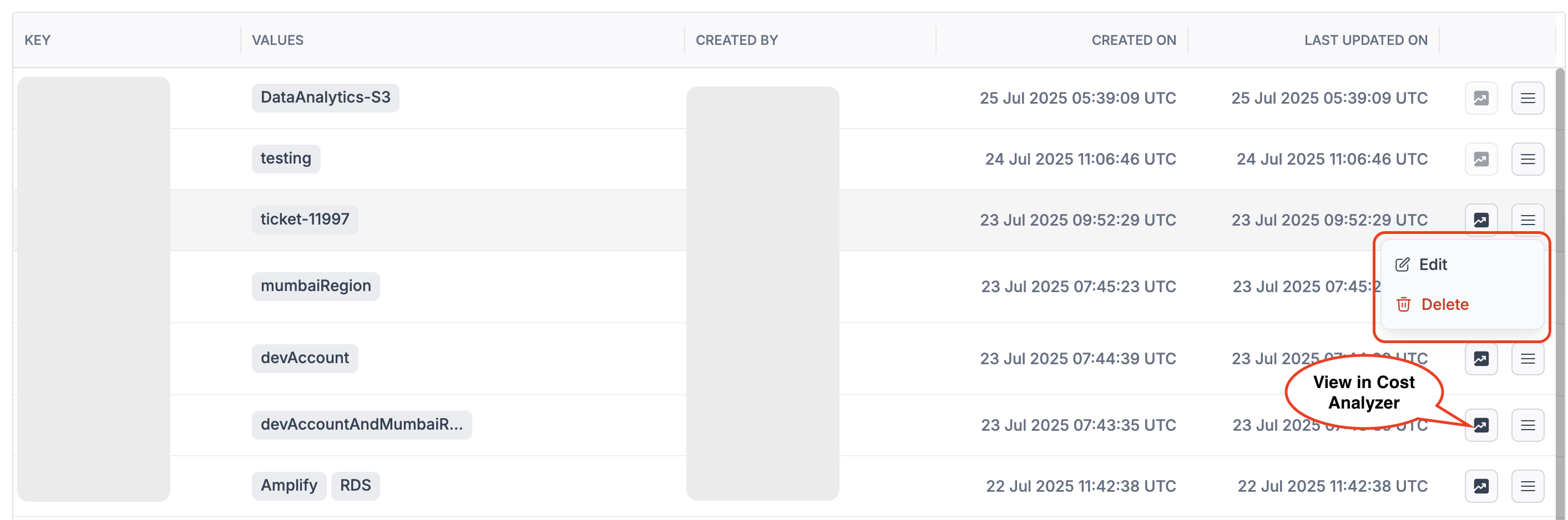
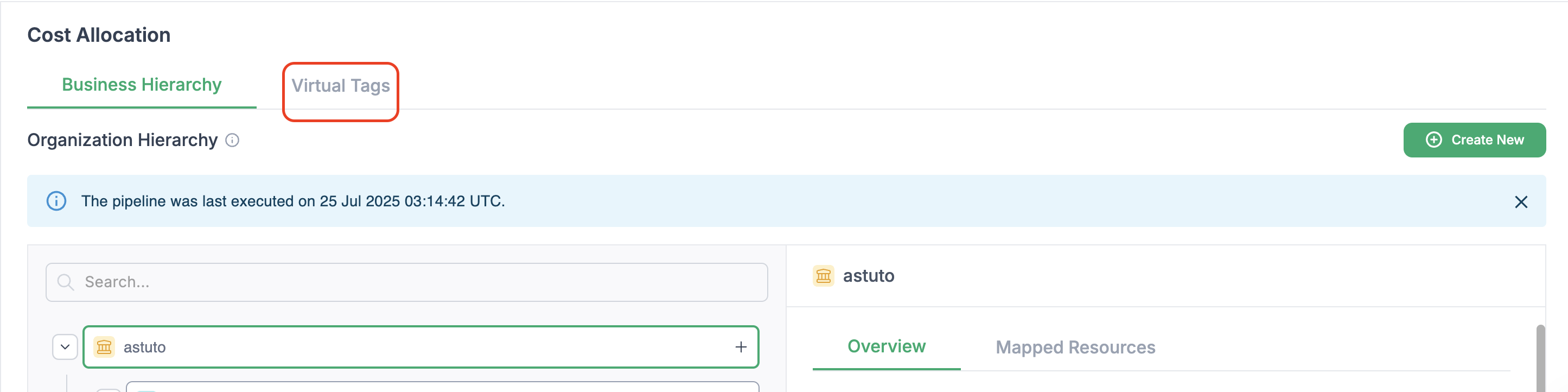
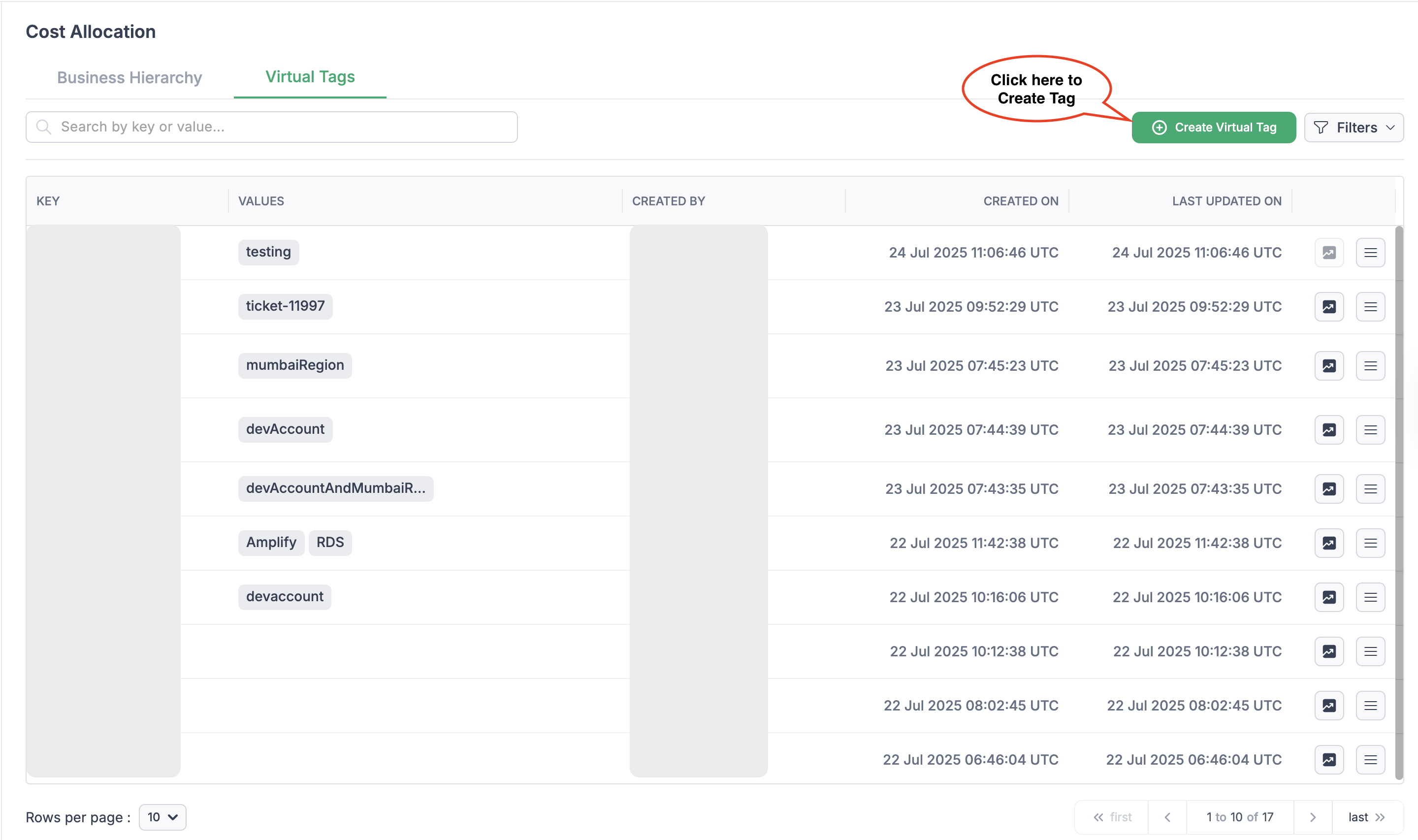
All your created tags are listed in the **Virtual Tags** tab.
You can manage any tag using the menu on the right of each row:
* **Manage** — Edit values, logic, or name.
* **Delete** — Remove the tag if it's no longer needed
{% endhint %}
#### Step 3: Allocating Shared Costs
Virtual Tags can also be used to allocate **shared costs** like support charges, data transfer, or common infrastructure across business units.\
➡️ Learn more about [Shared Cost Allocation](/observe-visibility-and-insights/cost-allocation/virtual-tags/shared-cost-allocation.md)
{% hint style="info" %}
## **Note**
**Allocating cost is optional**—you can choose to use virtual tags purely for grouping or visibility purposes without impacting cost allocation.
{% endhint %}
### Value Status Guide
Each value inside a Virtual Tag passes through a lifecycle status to help you track its readiness.
| Status | What It Means |
| --------------- | ----------------------------------------------------------------------------- |
| **Not Defined** | You’ve created the value, but no resources are mapped yet. |
| **Defined** | Resources have been mapped to the value, and associated costs are identified. |
| **Allocated** | The value is used in your cost hierarchy and cost is allocated accordingly. |
{% hint style="success" %}
A value is usable in Cost Atlas as soon as it is **Defined**. Allocation is optional.
{% endhint %}
## Managing Virtual Tags
All your created tags are listed in the **Virtual Tags** tab.
You can manage any tag using the menu on the right of each row:
* **Manage** — Edit values, logic, or name.
* **Delete** — Remove the tag if it's no longer needed