> For the complete documentation index, see [llms.txt](https://docs.onelens.cloud/llms.txt). Markdown versions of documentation pages are available by appending `.md` to page URLs; this page is available as [Markdown](https://docs.onelens.cloud/integrations/cloud-and-cost-sources/connecting-to-azure/automated-using-terraform.md).
# Automated using Terraform
This guide details the integration process and introduces a unified Terraform solution to fully automate onboarding, including App Registration, Cost Exports, and IAM role assignments.
{% hint style="warning" %}
The user executing the script must hold specific roles based on the target integration scope:\
\
**Management Group:** `Owner` or `User Access Administrator` at the Management Group level
**Subscription:** `Owner` at the Subscription level
**Resource Group:** `Owner` at the Resource Group level
{% endhint %}
OneLens is designed to adapt to your specific Azure organizational hierarchy. Whether your governance model relies on complex Management Groups, standalone Subscriptions with individual billing, or isolated Resource Groups, OneLens supports integration at the scope that best fits your needs.
To accelerate this process, we provide a **unified Terraform solution** that automates the complete onboarding workflow for all three scopes. This automation handles the end-to-end setup, including:
* **Infrastructure Setup:** Creates the App Registration (Service Principal), Storage Accounts, and Blob Containers.
* **Data Configuration:** Configures Cost Exports in Parquet format with Snappy compression and enables file partitioning.
* **Access Management:** Assigns required IAM roles and manages external user invitations.
{% hint style="warning" %}
The following prerequisites must be met before deploying the Terraform onboarding script:
* **Azure CLI:** Must be installed and authenticated (`az login`).
* **Terraform version:** Version 1.0 or greater is required
* **Optional:** `jq` is recommended for better JSON output formatting.\
\
**Note:** If you are using **Azure Cloud Shell (recommended)**, the above prerequisites will already be satisfied.
{% endhint %}
{% stepper %}
{% step %}
### Uploading the Script
* Login to the Azure Portal.
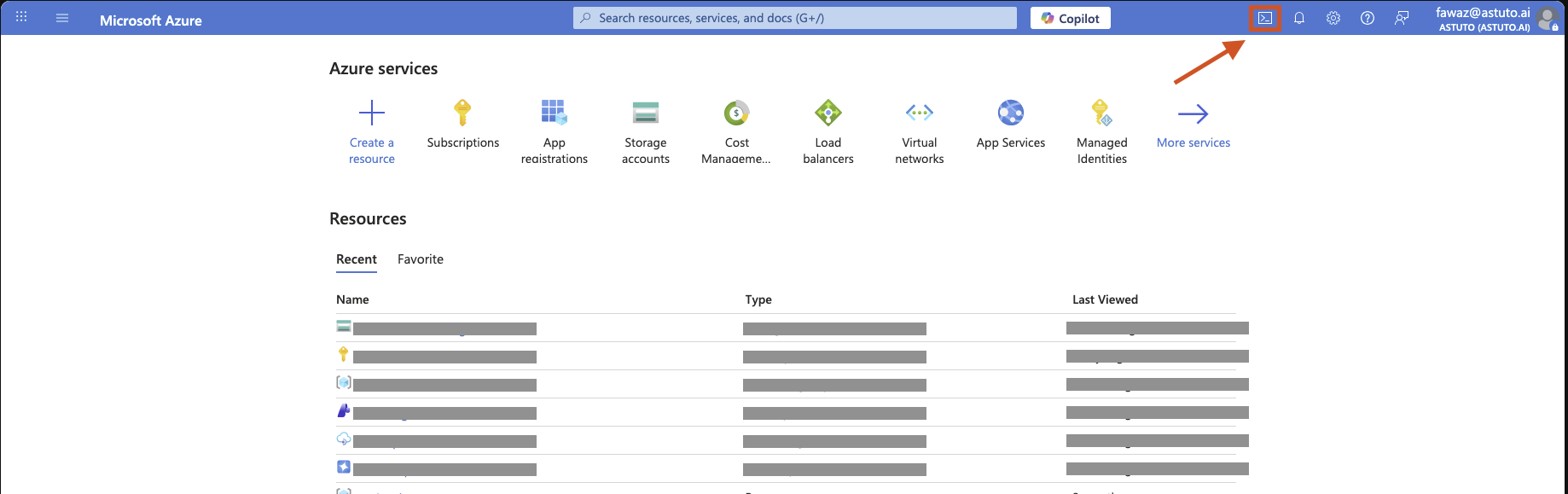
* From the Azure homepage, click the **Cloud Shell icon** on the top navigation bar to launch `Azure Cloud Shell`.
* The Azure Cloud Shell window would now be open. Authenticate your user if prompted.
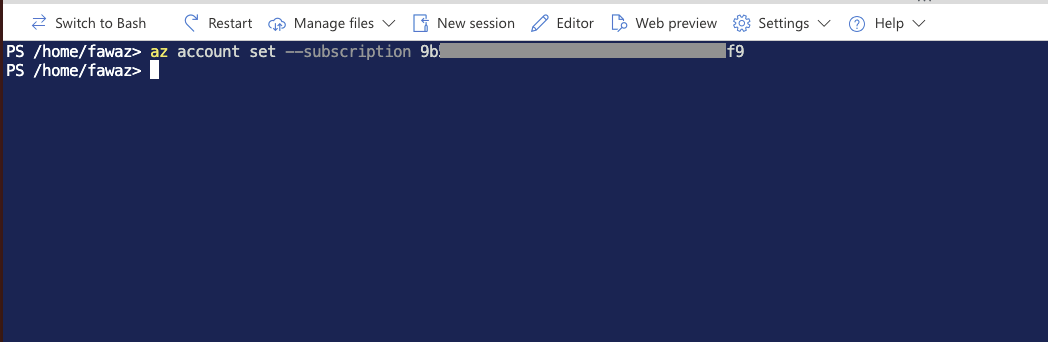
* Use the following command to set the working subscription in the Cloud Shell session. The cost export used by OneLens will be created in this subscription (applicable for all scopes).
```
az account set --subscription
```
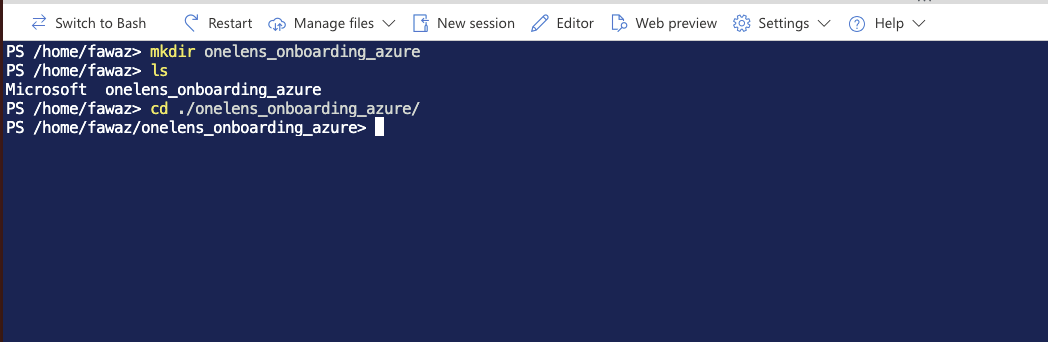
* Create a new folder using the following command:
```
mkdir onelens_onboarding_azure
```
* Navigate into the newly created folder using the following command:
```
cd ./onelens_onboarding_azure/
```
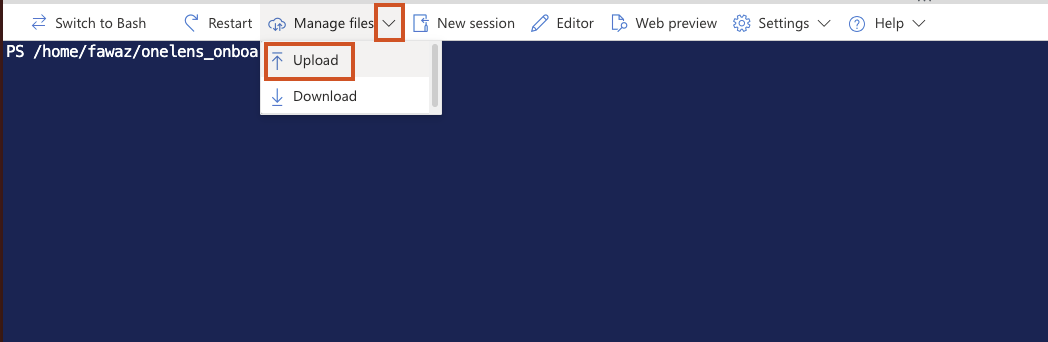
* Use the **Manage files** **> Upload** option to upload the Terraform script folder to Azure Cloud Shell.
{% hint style="info" %}
The script would have been provided to you in a **ZIP** format by the OneLens team. Please unzip the file into a folder and proceed to upload the files.
{% endhint %}
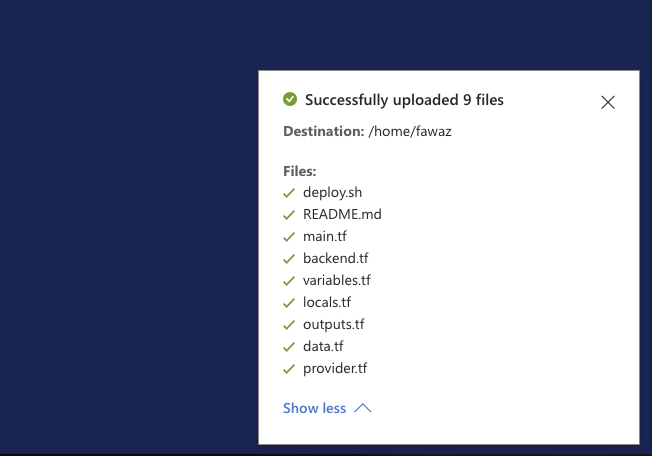
* Select all **9** files from the unzipped folder to upload.
* The Azure Cloud Shell window should display a successfully uploaded message.
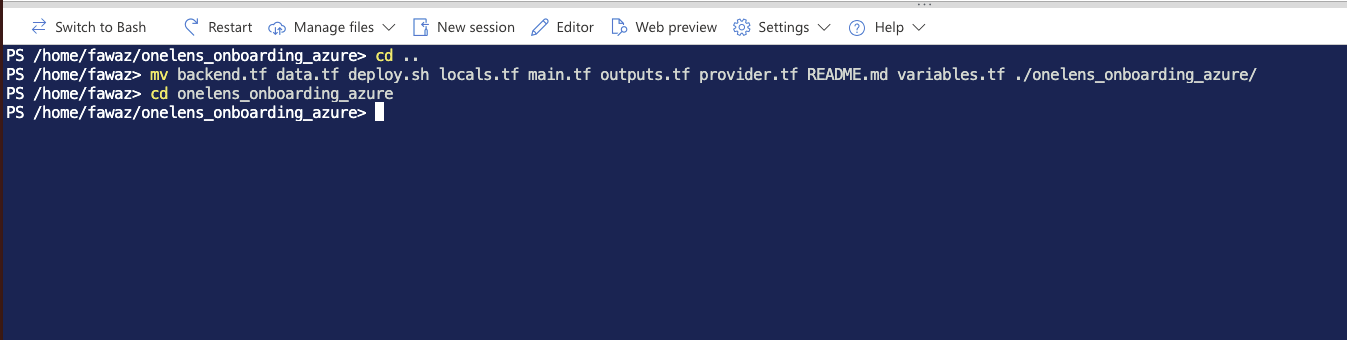
* Move all the files into the newly created folder using the following commands (for easier maintenance).
```
cd ..
mv backend.tf data.tf deploy.sh locals.tf main.tf outputs.tf provider.tf README.md variables.tf ./onelens_onboarding_azure/
cd onelens_onboarding_azure
```
{% endstep %}
{% step %}
### Setting variables for Terraform
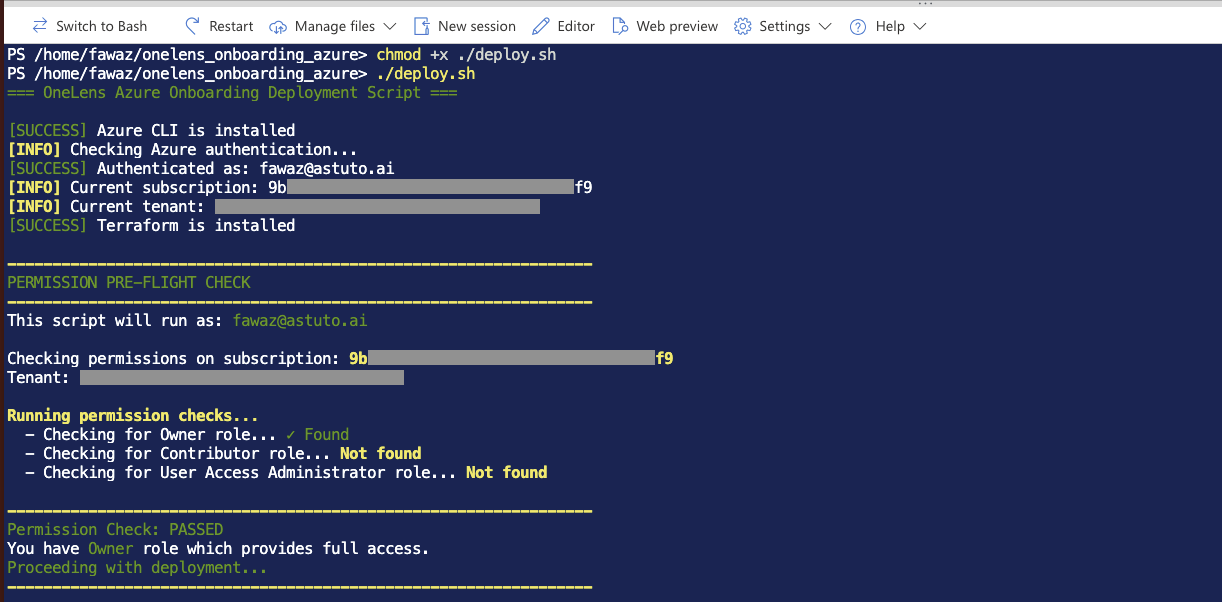
* Use the following commands to make the deploy.sh script executable and execute it:
```
chmod +x ./deploy.sh
./deploy,sh
```
This will initiate the deployment script and run pre-flight permission checks.
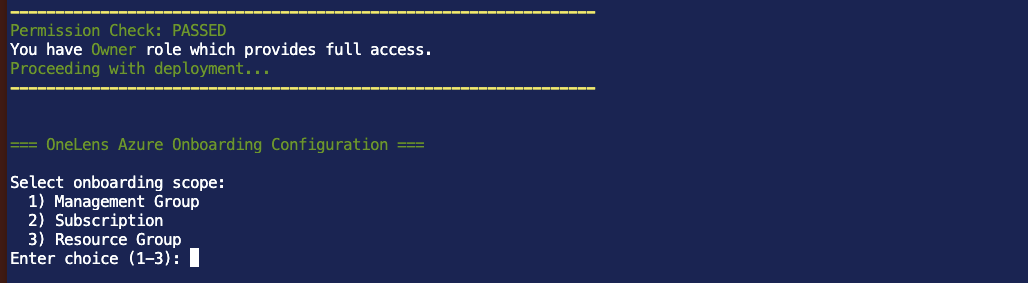
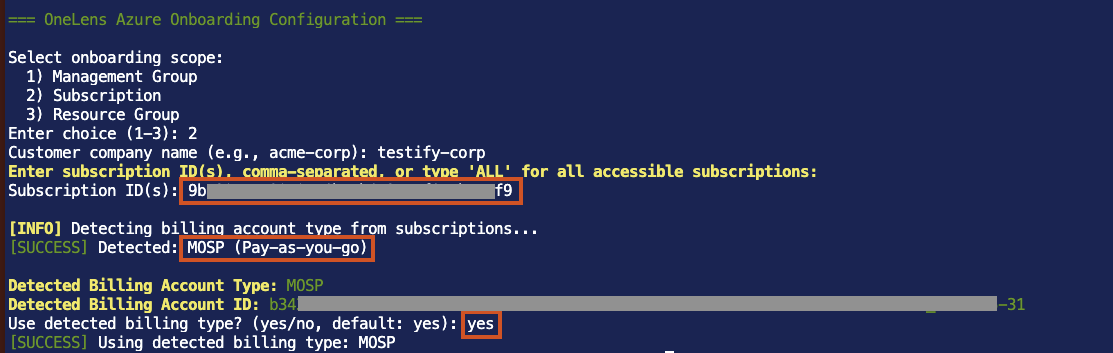
* Choose the scope of deployment by entering:
* **1** for *Management Group*
* **2** for *Subscription(s)*
* **3** for *Resource Group(s)*
In this guide, we are onboarding a single Subscription as an example.
* The script will prompt you for your company name (use lowercase characters and hyphens only).
* Next, enter the Subscription ID(s) separated by commas, or type "ALL" to onboard all available subscriptions.
{% hint style="info" %}
Depending on your scope of onboarding, the script will prompt you for the Management Group (tenant) ID(s) or the Resource Group ID(s).
{% endhint %}
* Using the entered value, the script determines your **Billing Account type** (MOSP, MCA, EA) and the **Billing Account ID** and prints the same for your verification. Type **yes** to use the value.
* Next, the script will prompt you to enter the **External User email ID** (unless explicitly provided by the OneLens team, you can hit **Enter** to use the default value).
* Next, the script will prompt you to specify an **Azure region** where the new storage account (for storing the Cost export) is to be created. To use the default value (Central India), hit **Enter**.
{% hint style="warning" %}
You can specify any region by using the **programmatic name** from the below list.\
\
[Azure regions list](https://learn.microsoft.com/en-us/azure/reliability/regions-list#azure-regions-list-1)
{% endhint %}
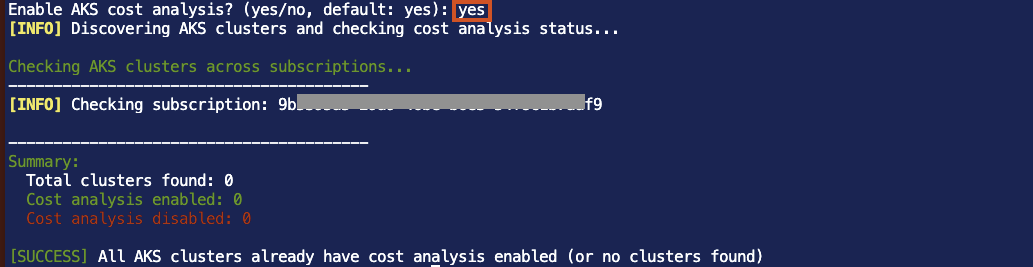
* Next, the script will prompt you to enable **AKS Cost Analysis** for detailed usage and cost metrics for Azure Kubernetes clusters. If you do not use AKS in the selected scope, you can enter **no.**\
\
If yes, the script will check for available clusters in your scope and enable AKS cost analysis.
{% hint style="info" %}
For more details on how and why we enable AKS cost analysis, please refer to the below documentation from Microsoft:\
\
[AKS Cost Analysis](https://learn.microsoft.com/en-us/azure/aks/cost-analysis)
{% endhint %}
* Next, the script will prompt you to **enable Tag Inheritance**. It is **recommended to enable** it for better tagged visibility on OneLens.
{% hint style="info" %}
For more details on how and why we enable Tag Inheritance, please refer to the below documentation from Microsoft:\
\
[Enable Tag Inheritance](https://learn.microsoft.com/en-us/azure/cost-management-billing/costs/enable-tag-inheritance)
{% endhint %}
* Next, the script will prompt you to enter the client ID of the **App Registration** to enable integration with OneLens. It is recommended to create a new App Registration by pressing **Enter**.
* Subsequently, the script prompts you to enter the name of the **Storage Account** to use for cost exports. It is recommended to create a new Storage Account by pressing **Enter**.
* To keep the OneLens resources organized in your environment, the script creates a Resource Group called **onelens-rg**. \
\
If a resource group with that name is already present, press **1** to use it, or press **2** to create a new Resource Group with a custom name. By default, the script will create a new Resource Group.
* The script will then prompt you for a **Container name** to be created in the Storage Account.\
\
By default, the script will use the value **onelens-cost-usage-reports** on pressing **Enter**.
{% endstep %}
{% step %}
### Executing the script
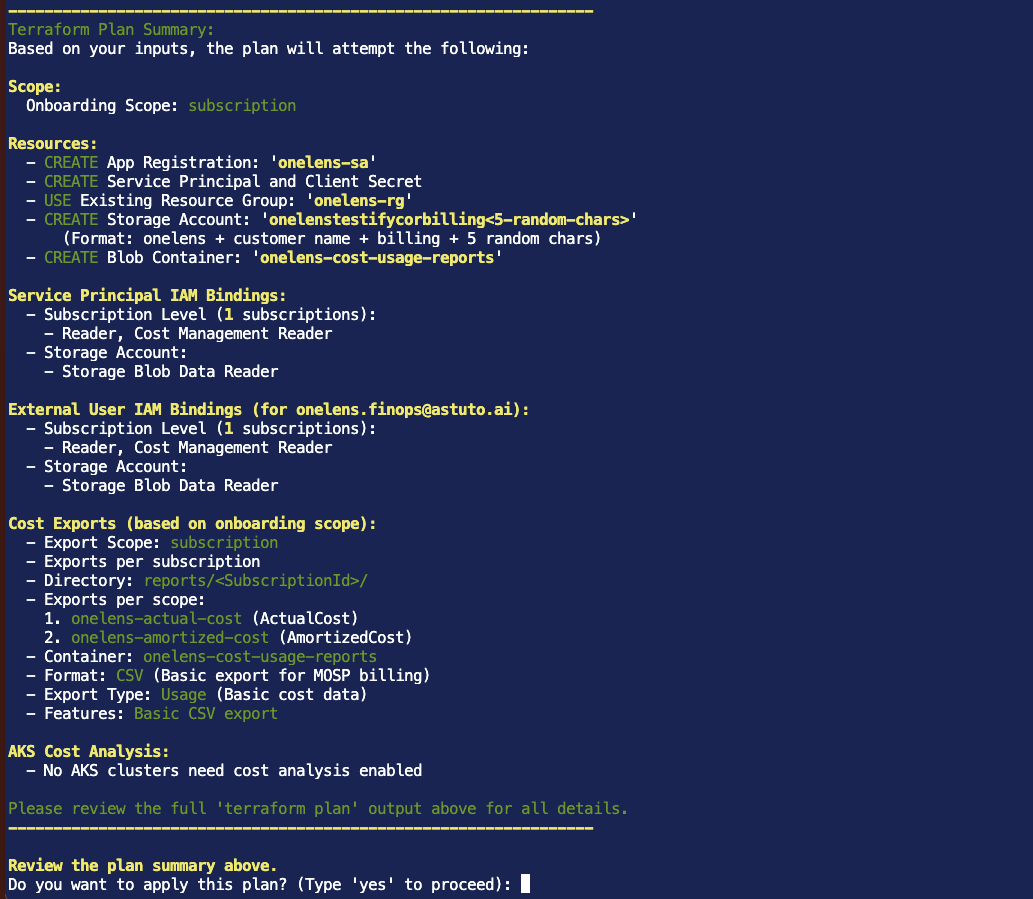
* After validating all inputs, the script runs the `terraform init` and `terraform plan` commands, then prints a **summary** of the resources to be created for your reference.\
\
Upon entering **yes**, the script proceeds to run the `terraform apply` command.
* On successful execution, the script saves the outputs into a Terraform statefile and outputs a summary.
{% hint style="success" %}
**You have now ****successfully**** integrated your Azure environment with OneLens.**
\
**Please share the following values to the OneLens team to facilitate the connection on our end:**
* *App Registration Tenant (Directory) ID*
* *App Registration Client (Application) ID*
* *App Registration Client Secret Value*
* *App Registration Client Secret ID*
* *Storage Account name*
* *Container name*
* *Subscription ID(s) / Resource Group ID(s) / Management Group ID(s)*
{% endhint %}
{% endstep %}
{% step %}
### Optional: Backup the state file to Azure Storage (recommended)
* As a final step, the script prompts you to backup the Terraform state file to the storage account used. \
\
It is recommended to enter **yes**, to streamline the process for deleting the OneLens resources in case of a future offboarding activity.
{% endstep %}
{% endstepper %}
---
# Agent Instructions
This documentation is published with GitBook. GitBook is the documentation platform designed so that both humans and AI agents can read, navigate, and reason over technical content effectively. Learn more at gitbook.com.
## Querying This Documentation
If you need additional information that is not directly available in this page, you can query the documentation dynamically by asking a question.
Perform an HTTP GET request on the current page URL with the `ask` query parameter, and the optional `goal` query parameter:
```
GET https://docs.onelens.cloud/integrations/cloud-and-cost-sources/connecting-to-azure/automated-using-terraform.md?ask=&goal=
```
`ask` is the immediate question: it should be specific, self-contained, and written in natural language.
`goal` is optional and describes the broader end goal you are ultimately trying to accomplish on behalf of the user. GitBook uses it to tailor the answer towards what is most useful for that goal.
The response will contain a direct answer to the question and relevant excerpts and sources from the documentation.
Use this mechanism when the answer is not explicitly present in the current page, you need clarification or additional context, or you want to retrieve related documentation sections.