> For the complete documentation index, see [llms.txt](https://docs.onelens.cloud/llms.txt). Markdown versions of documentation pages are available by appending `.md` to page URLs; this page is available as [Markdown](https://docs.onelens.cloud/integrations/cloud-and-cost-sources/connecting-to-azure/at-management-group.md).
# At Management Group
Customers who have configured multiple subscriptions in their account can follow the below guide to integrate all subscriptions with minimal effort.
{% hint style="info" %}
User performing the integration should have **Owner** role on the management groups being integrated.
Make sure the following resource providers are enabled on the subscriptions in the management groups being onboarded:
1. Microsoft.CostManagementExports
2. Microsoft.CostManagement
3. Microsoft.Billing
4. Microsoft.Storage \
{% endhint %}
To begin using OneLens, you need to connect your Azure account by creating an App Registration (Service Principal) and assigning the required permissions for FinOps assessment.
The following guide allows to onboard a management group containing one (or multiple) subscriptions to OneLens.
3 types of Azure billing accounts are currently supported:
* *Microsoft Online Services Program / Pay-as-you-go (MOSP),*
* *Microsoft Customer Agreement (MCA) and*
* *Microsoft Enterprise Agreement (EA).*
Only the IAM permissions tied to the App Registration slightly differ according to the type of billing setup you have. To integrate, follow the below steps:
{% stepper %}
{% step %}
### Create a new App Registration (Service Principal)
* From the home page of the Azure portal, search for and open `Microsoft Entra ID`.
* In the left navigation menu, under `Manage`, select `App registrations`.
* Click `+ New Registration`
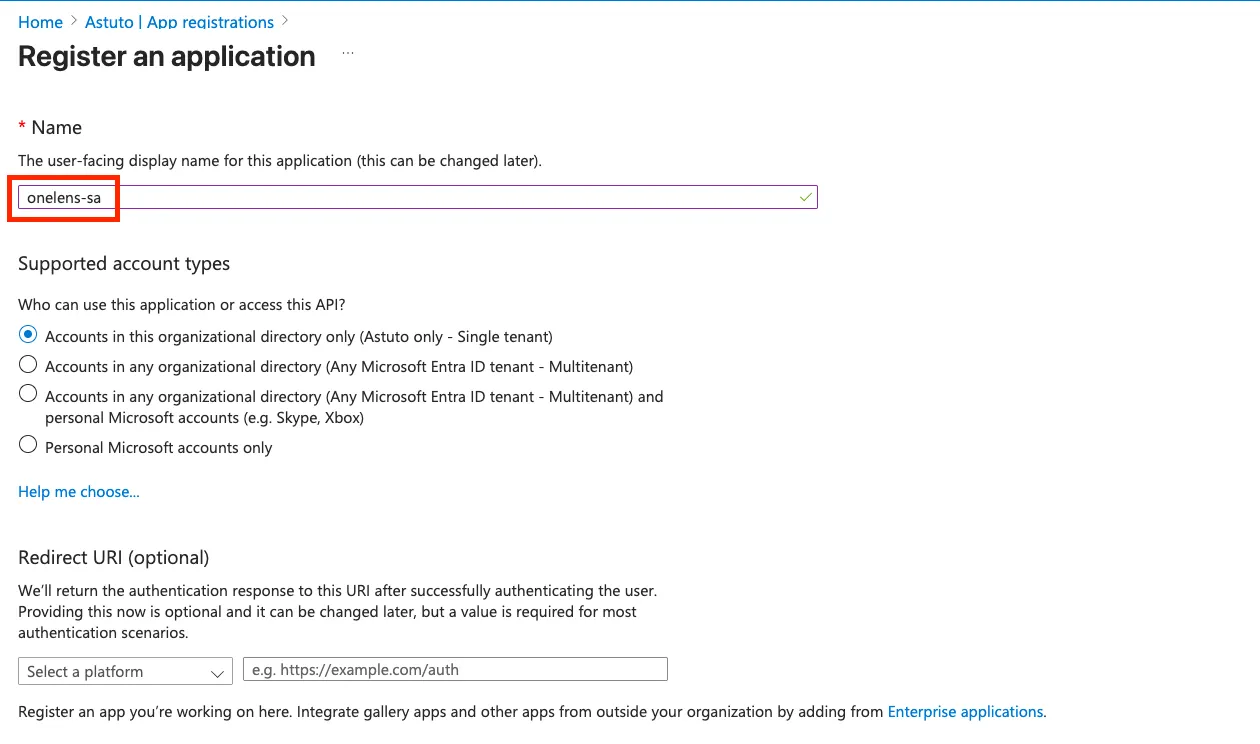
* In the open Register an application page, under **Name**, enter “*onelens-sa*”.
* All other settings can be left as default (as below).
* Click `Register`\
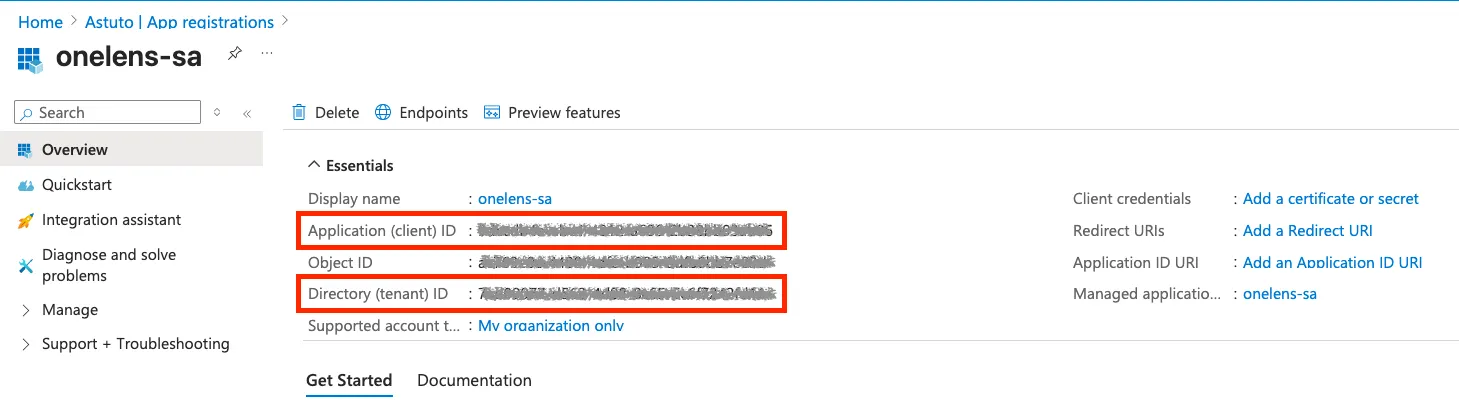
* The App Registration details should now be displayed.
{% hint style="danger" %}
**Copy the Application `Client ID` and `Directory (tenant) ID` values to a safe location. You will need these values later.**
{% endhint %}
{% endstep %}
{% step %}
### Generate a Client Secret
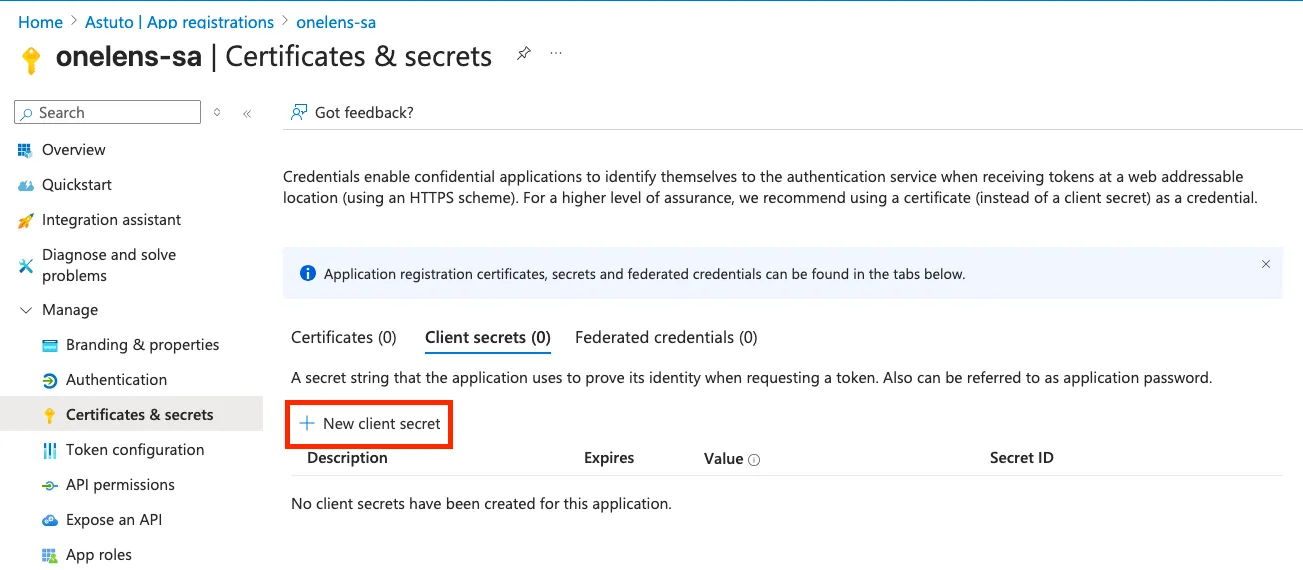
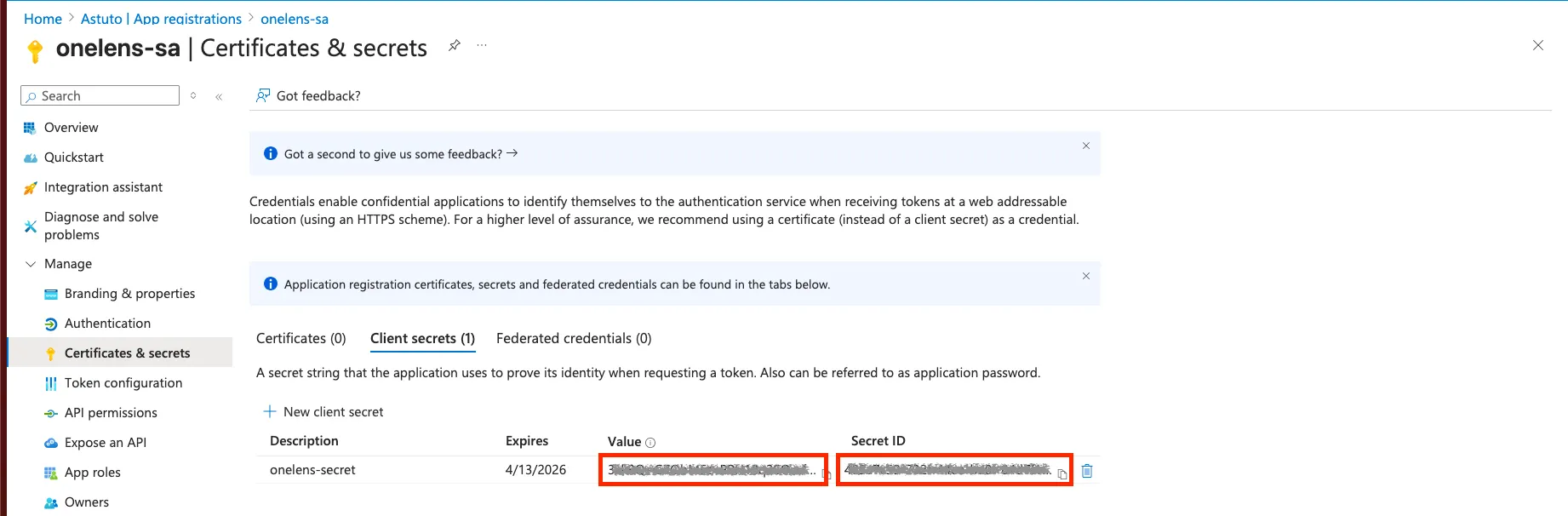
* In the **App registration** page, in the left navigation menu under **Manage**, click `Certificates & secrets`.
* Under the **Client secrets** tab, click `+ New client secret`.
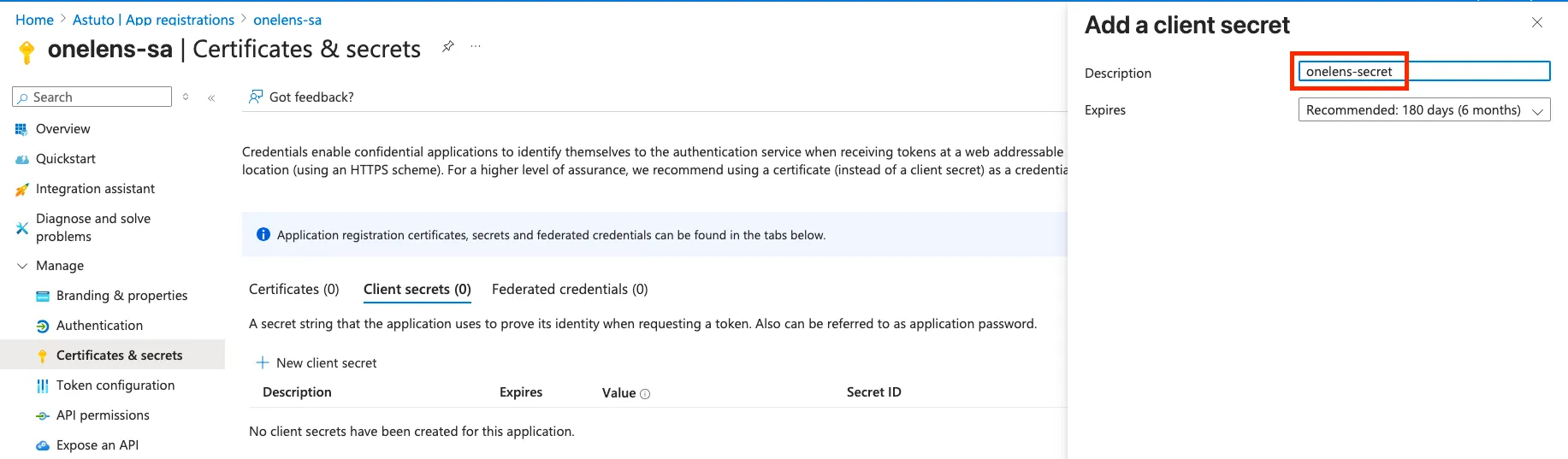
* The **Add a client secret** window is opened. For description, enter the value “*onelens-secret*”.
* Click `Add`.
* The newly created secret is now displayed.
{% hint style="info" %}
**Copy the secret’s `Value` and `ID` to a safe location. You will need these values later.**
{% endhint %}
{% endstep %}
{% step %}
### Assign billing permissions to the App Registration
#### For MCA/MOSP/PayGo accounts:
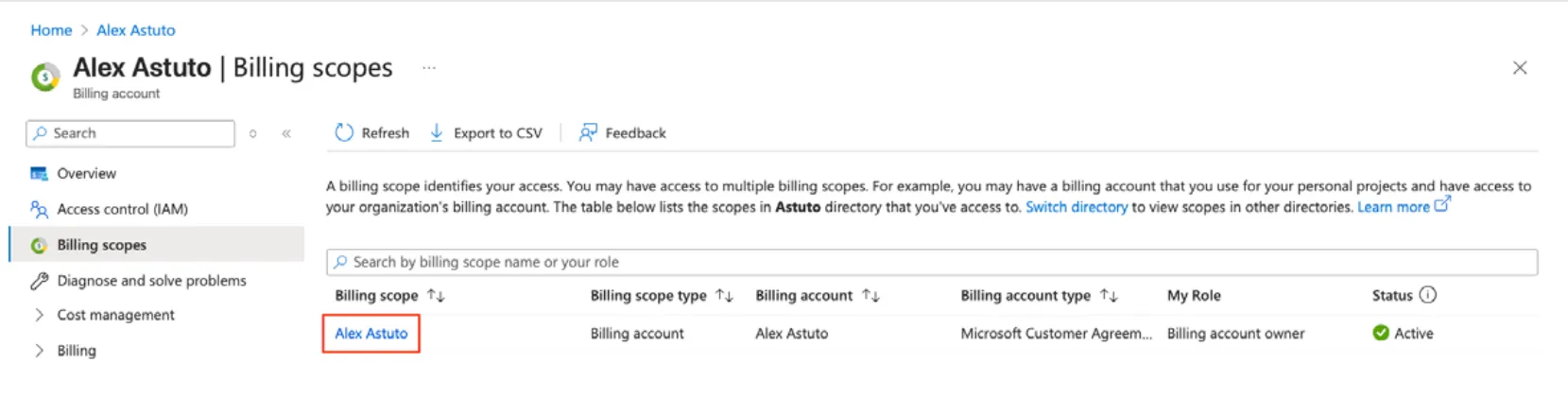
* From the Azure homepage, go to `Cost Management + Billing` and select your `Billing Scope`.
* From the left navigation menu, select `Access Control (IAM)`
* Click `+ Add`
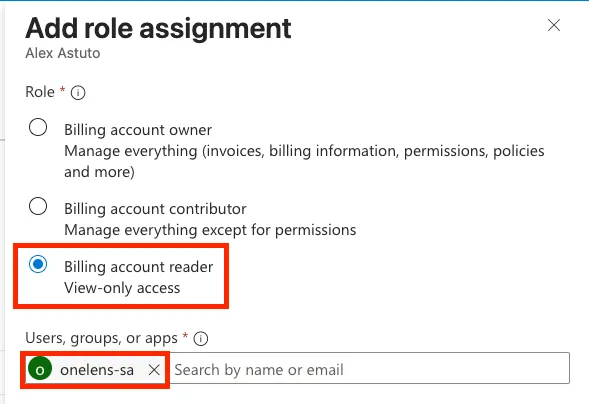
* Under Role, select `Billing account reader`. In the Users, groups or apps section, search for and add the **App registration** created earlier (“*onelens-sa*”).
* Click `Add`.
#### For EA accounts:
* From the Azure homepage, search for go to `Management groups`. Select your management group to be integrated.
* From the left navigation menu, select `Access Control (IAM)`.
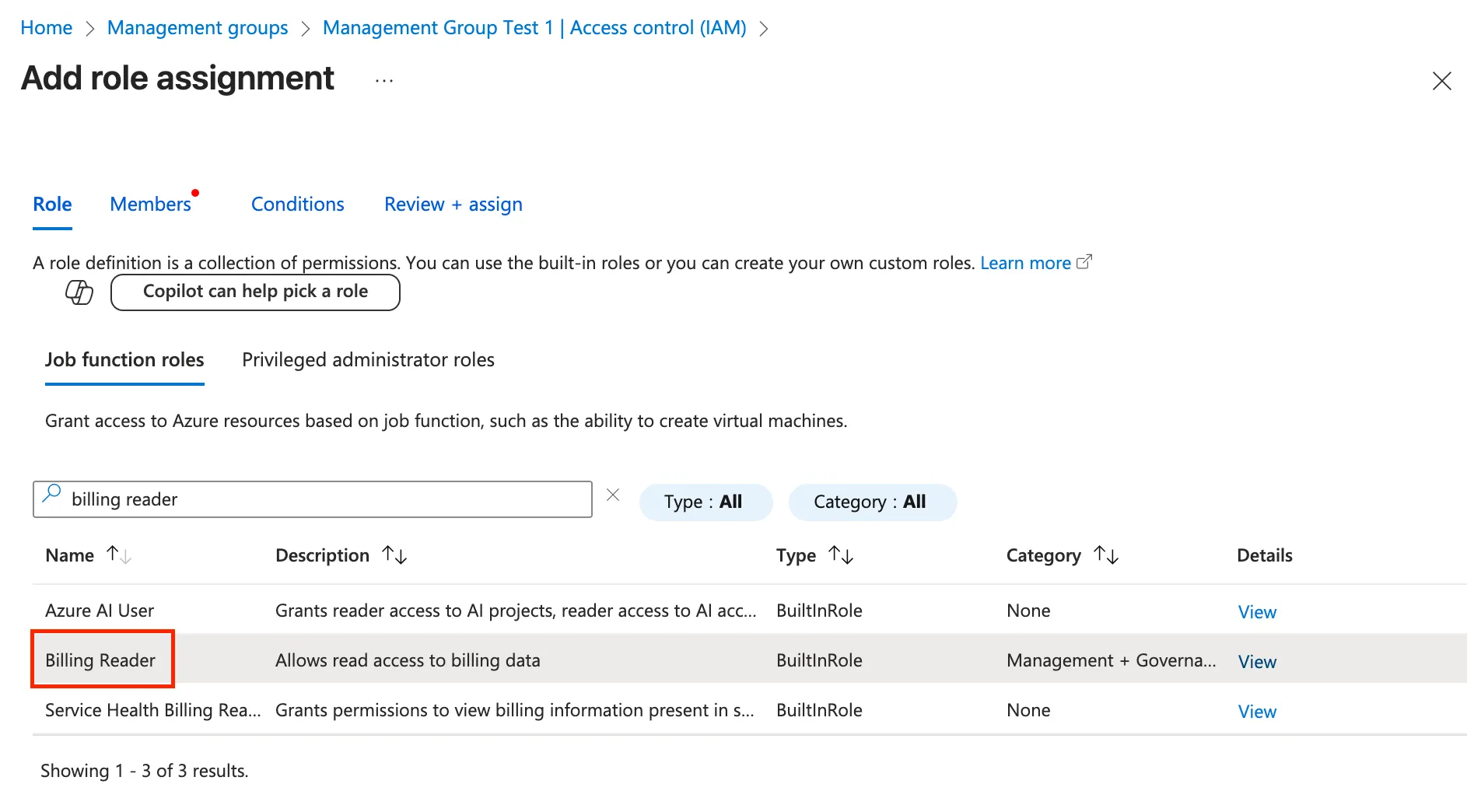
* Click `+ Add`, and select `Add role assignment`.
* In the opened Add role assignment screen, under `Job function roles`, search for and select `Billing reader`.
* Click `Next`. Under **Members,** click `+ Select members`, and select the `App registration` created earlier ("*onelens-sa"*)
* Click `Review + assign`
{% endstep %}
{% step %}
### Create a storage account and enable exports
* From the Azure homepage, search for and open `Storage accounts`.
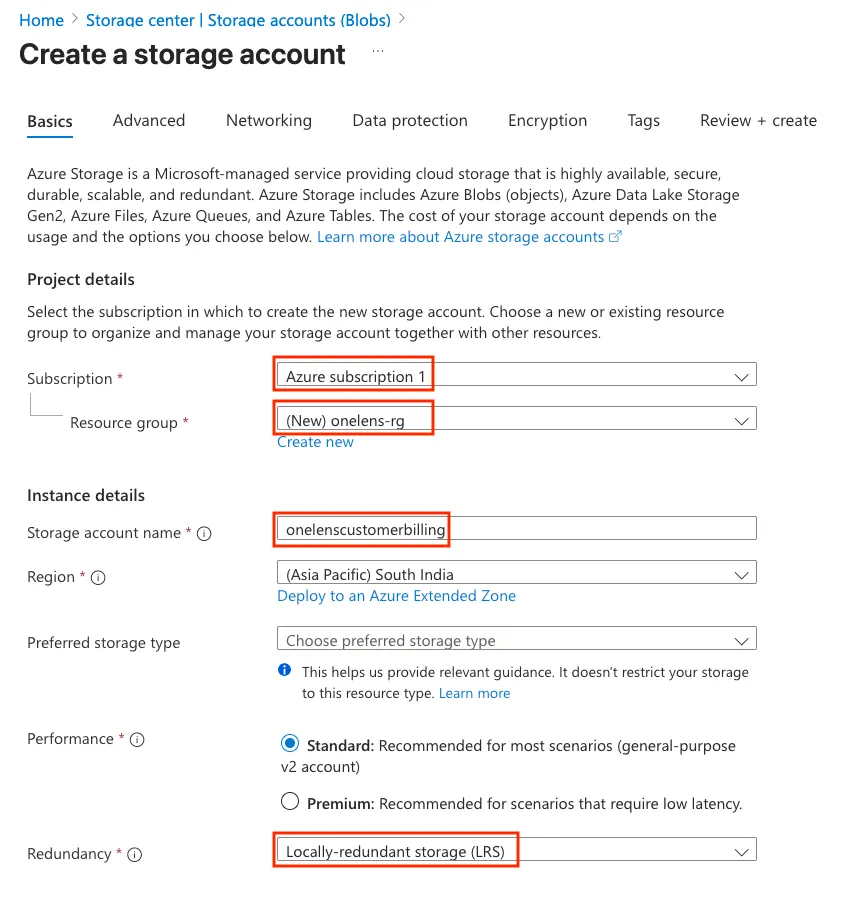
* Click `+ Create`. The **Create a storage account** window is opened.
* Under the **Basics** tab, add the following values:
* **Subscription**: Select a subscription in the management group being onboarded.
* **Resource group**: Create a new resource group with the name as `onelens-rg`.
* **Storage account name**: Enter a globally unique, lowercase name like `onelens--billing`.
* **Region**: Choose your desired Azure region e.g. **(Asia Pacific) South India**.
* **Performance**: **Standard**
* **Redundancy**: Select **Locally-redundant storage (LRS)**.
* Click **Next**.
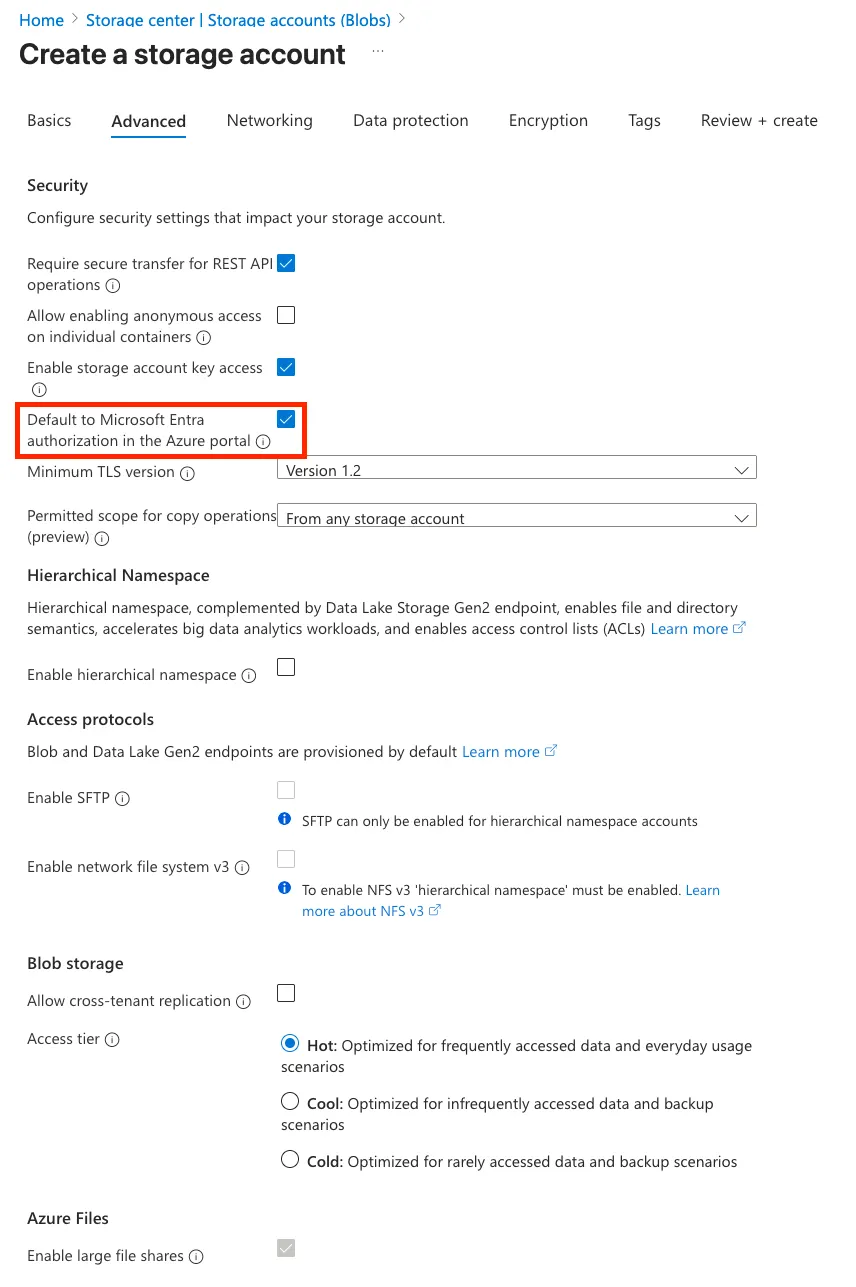
* Under the `Advanced` tab, configure the following:
* Set **Default to Microsoft Entra authorization in the Azure portal** to Enabled
* All other options can be left in their default state.
* Click `Review + Create`. Wait for the deployment to complete.
* Once created, open the newly created storage account.
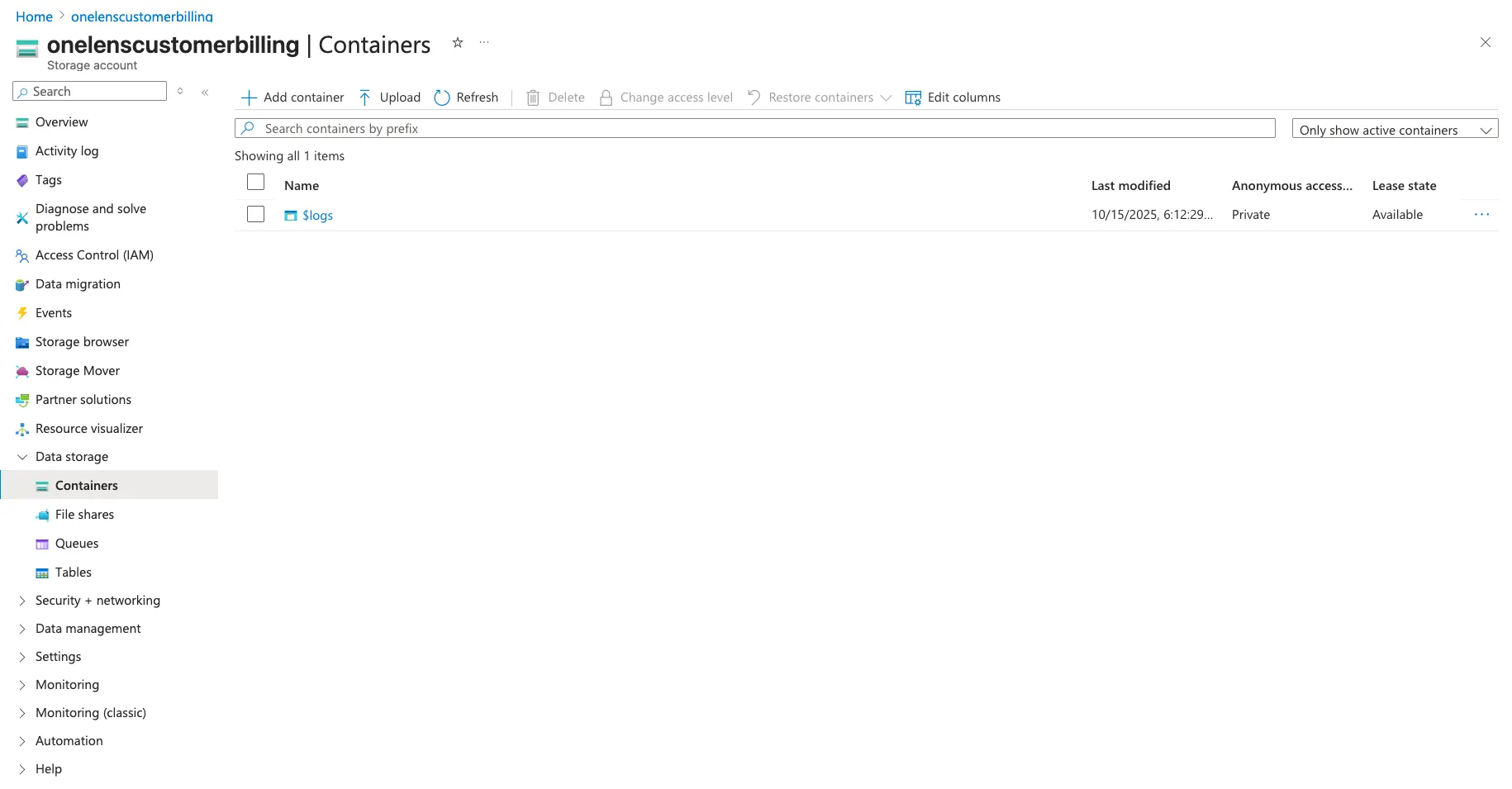
* In the left navigation pane, under `Data Storage`, select **Containers**.
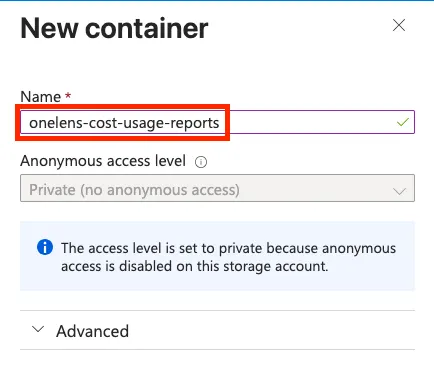
* Click on `+ Add Container`, and add the following values:
* Under **Name**, enter the value `onelens-cost-usage-reports`**.**
* Leave the **Anonymous access level** option as default: **Private (no anonymous access)**.
* Click `Create`.
* Using the Azure Portal search bar, search for an open `Cost Management + Billing`**.**
* Under **Scope**, make sure the right **Billing account** is selected.
* In the left navigation pane, under `Settings`, select `Exports`.
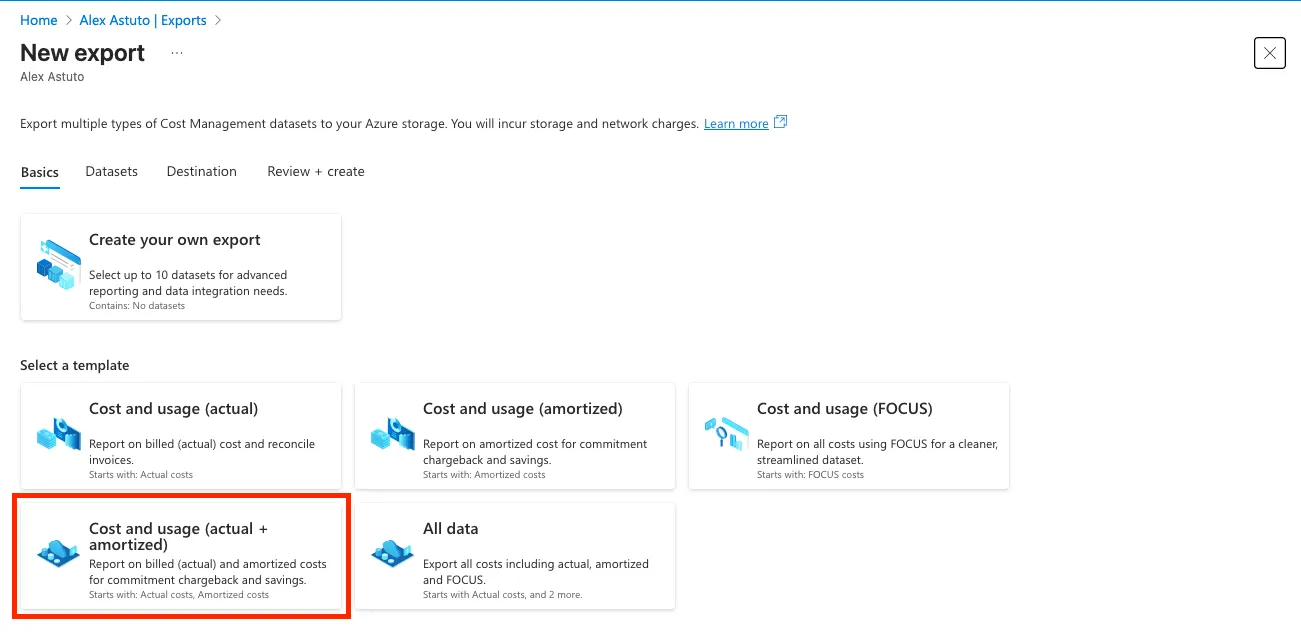
* Click `+ Create`.
* In the opened **New export** window, under the **Basics** tab, select **Cost and usage (actual + amortized)**.
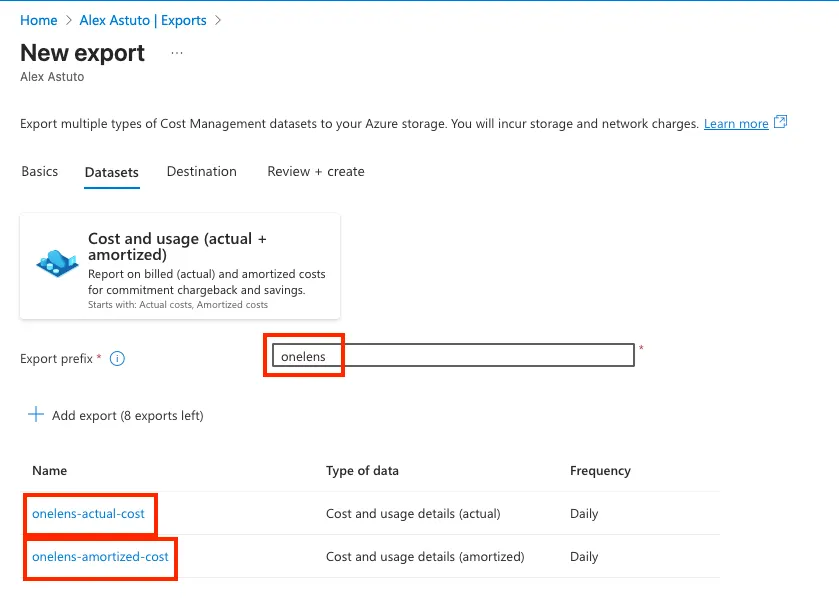
* Under the **Datasets** tab, in the **Export prefix** field, enter the value: **onelens.**
* In the **Datasets** tab, now two exports should be visible:
* onelens-actual-cost
* onelens-amortized-cost
* Click `Next`.
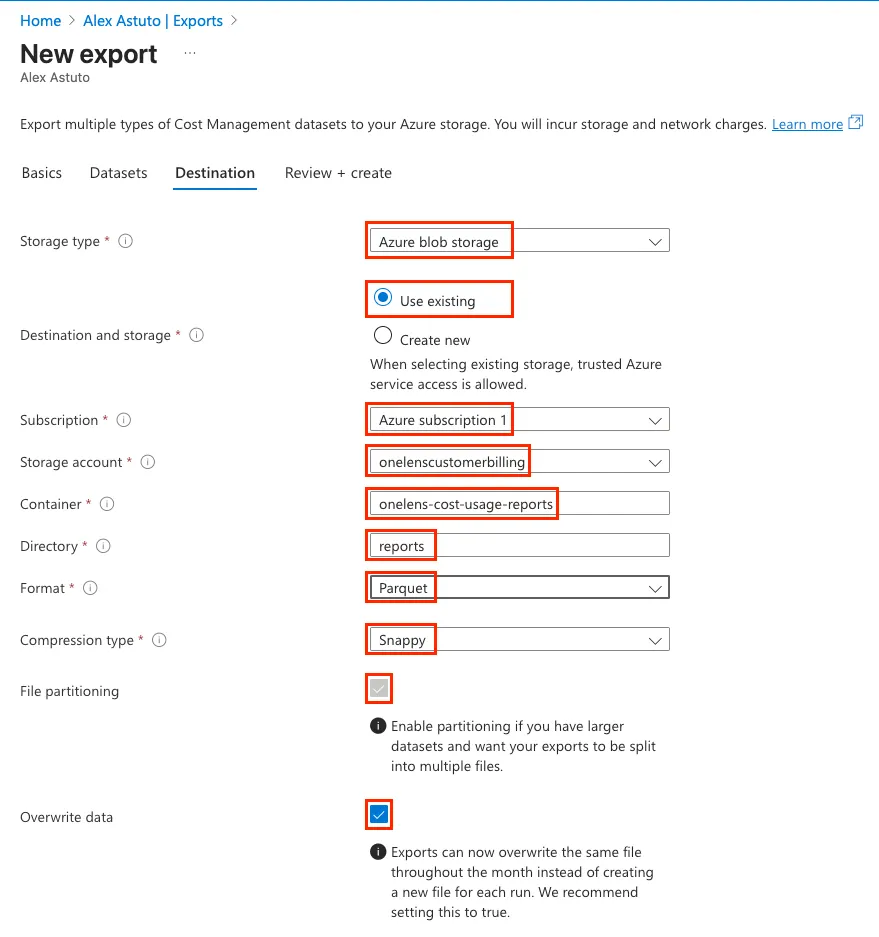
* Under the `Destination` tab, enter the following values:
* **Storage type:** **Azure blob storage**
* **Destination and storage**: **Use existing**
* **Subscription:** Select the **subscription** containing the new storage account.
* **Storage account:** Select the storage account created earlier (**onelens-\-billing**).
* **Container:** Enter the name of the container created earlier (**onelens-cost-usage-reports**).
* **Directory:** Enter a new directory name like **reports**.
* **Format:** **Parquet**
* **Compression type:** **Snappy** (default)
* **File partitioning:** **enabled** (default)
* **Overwrite data:** **enabled** (default)
* Click `Review + Create`. The first set of exports should run within \~24 hours.
{% endstep %}
{% step %}
### Assign Azure RBAC roles to the App Registration
* From the Azure homepage, search for and open `Management groups`.
* Select your **management group** to be integrated.
* From the left navigation menu, select `Access Control (IAM)`.
* Click `+ Add` and select `Add role assignment`.
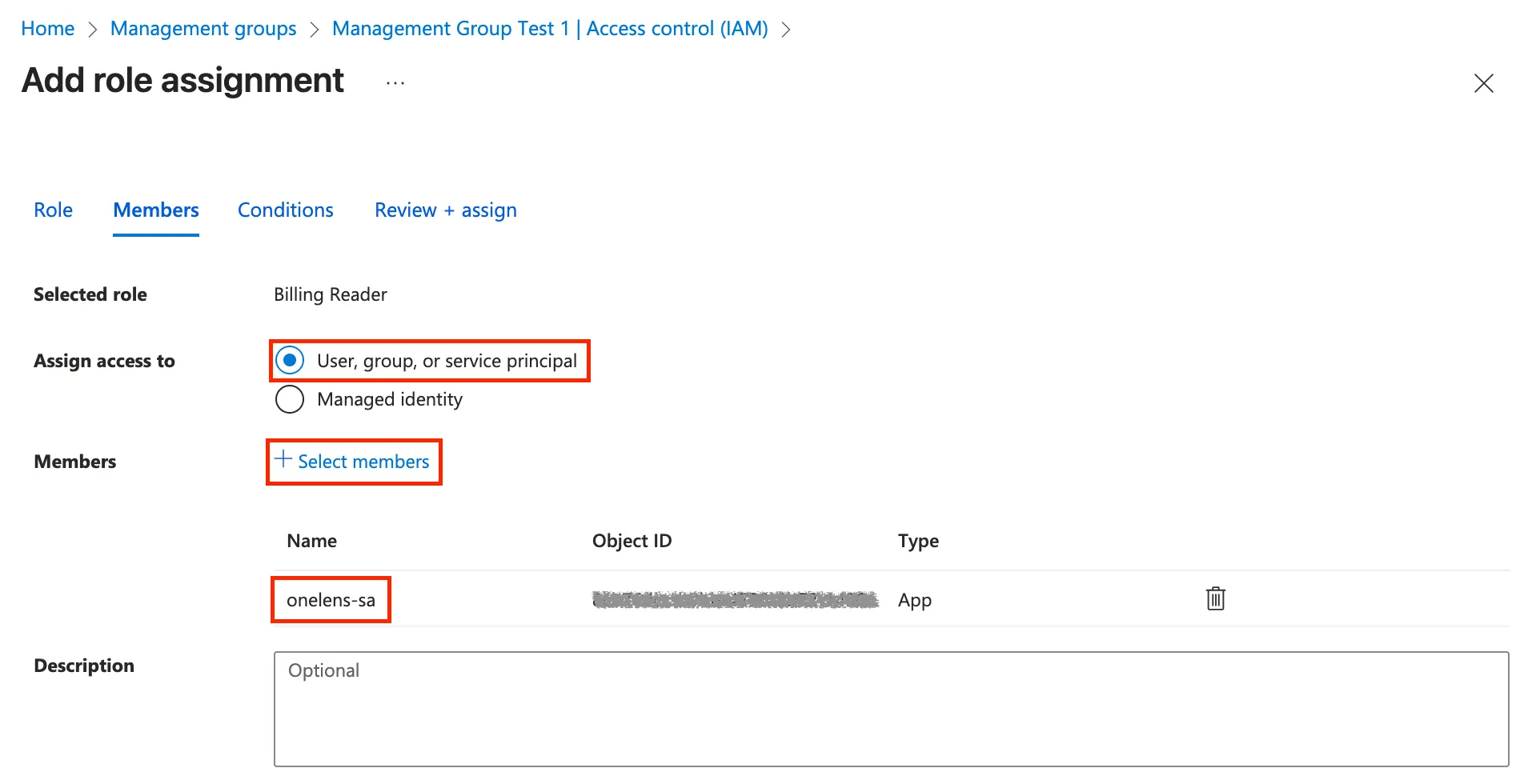
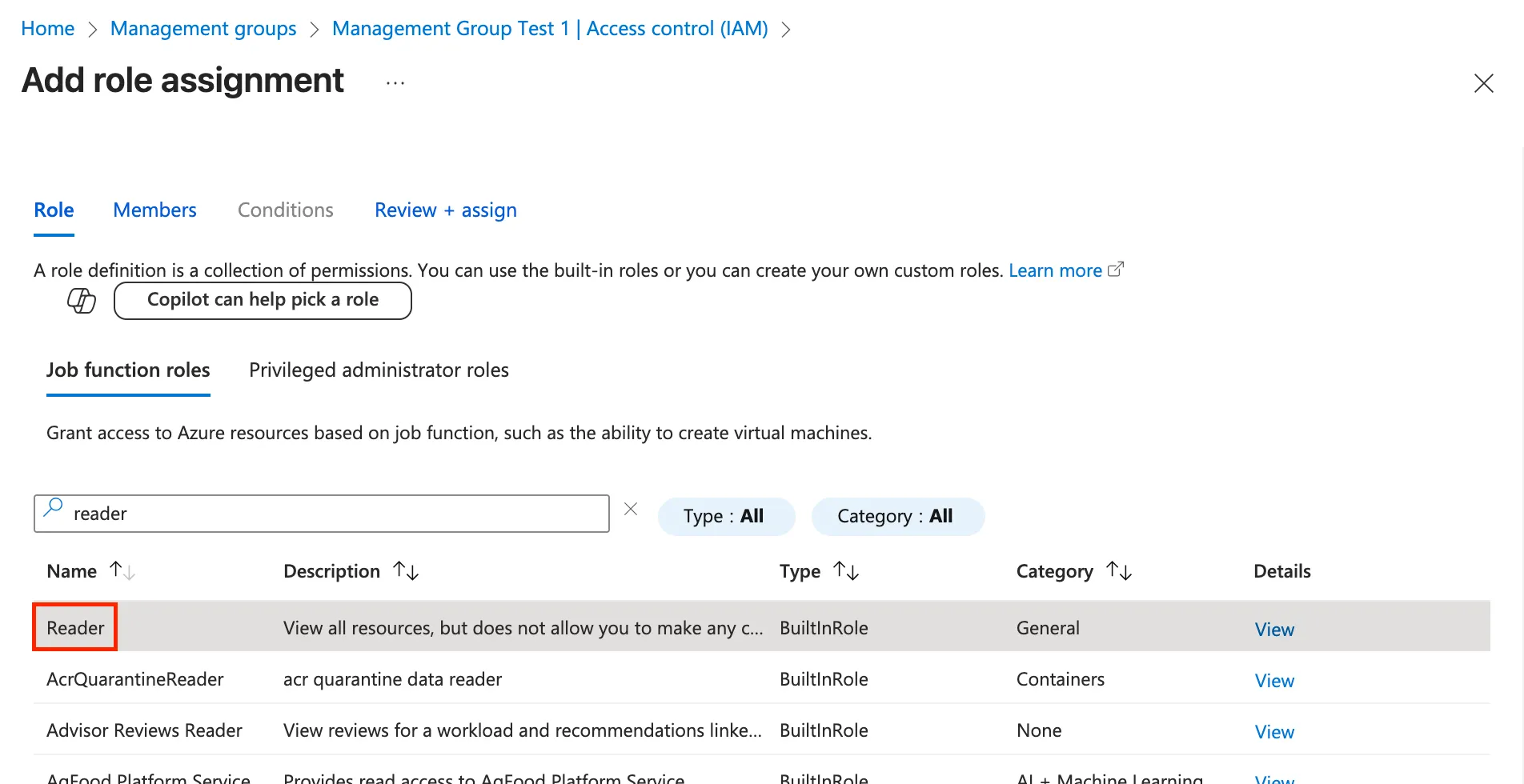
* In the opened `Add a role assignment` window, under the **Job function roles** tab, search for and select `Reader`. Click `Next`.
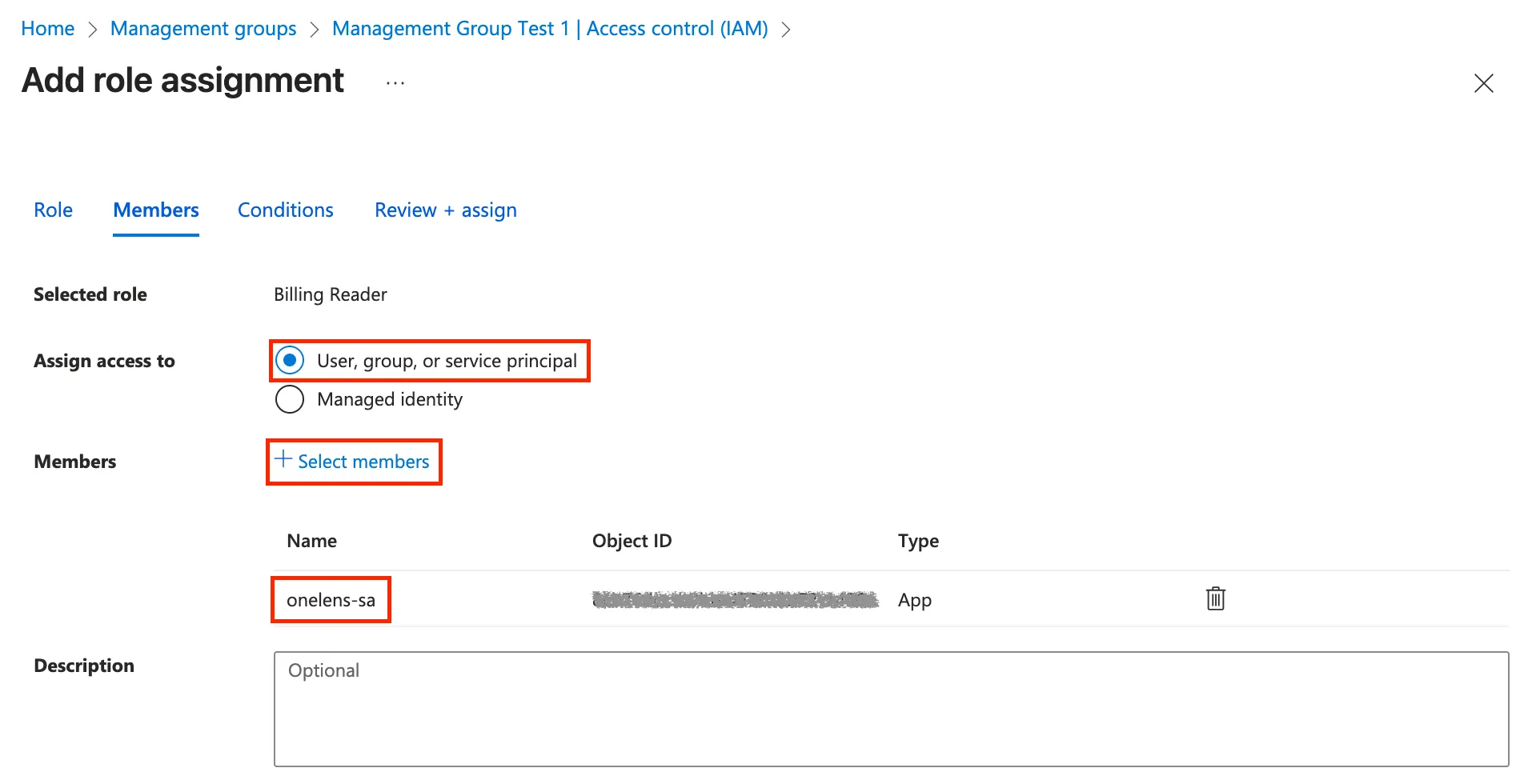
* Under the **Members** tab, click **+ Select members**, and select the App registration created earlier (*”onelens-sa”*).
* Click `Review + assign`.
* Similarly, add `Cost Management Reader` role.
* Using the Azure search bar on the top, search for and select `Storage Accounts`.
* Navigate to the **storage account** created in step 4.
* In the left navigation pane, select `Access Control (IAM)`.
* Click `+ Add` and select `Add role assignment`.
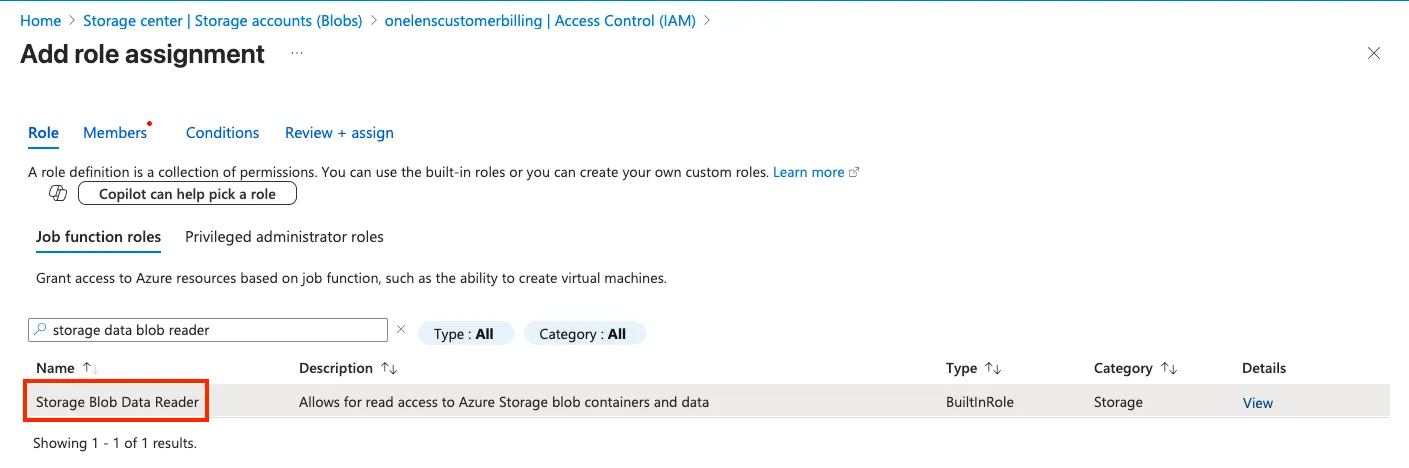
* In the `Role` tab, search for and select `Storage Blob Data Reader`. Click `Next`.
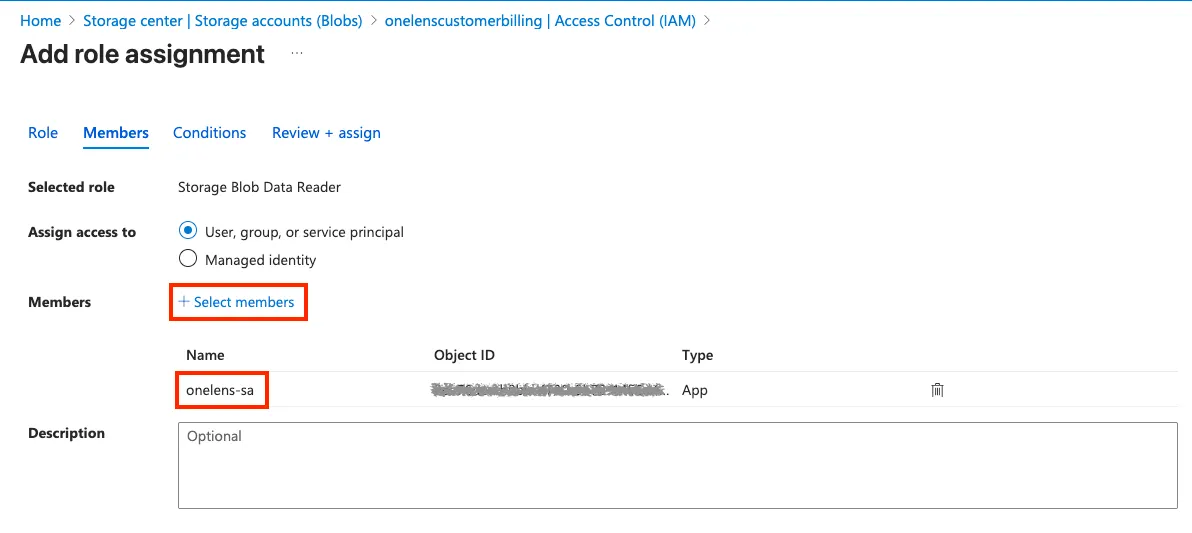
* In the `Members` tab, enter the following:
* Assign access to: **User, group, or service principal**
* Members: click `+ Select members`, search for and select the App registration created earlier ("onelens-sa").
* Click `Review + assign`.
{% endstep %}
{% step %}
### Assign Azure RBAC roles to external user
* Login to the homepage of the Azure Portal, search for and open `Microsoft Entra ID`.
* In the left navigation menu, select `Access Control (IAM).`
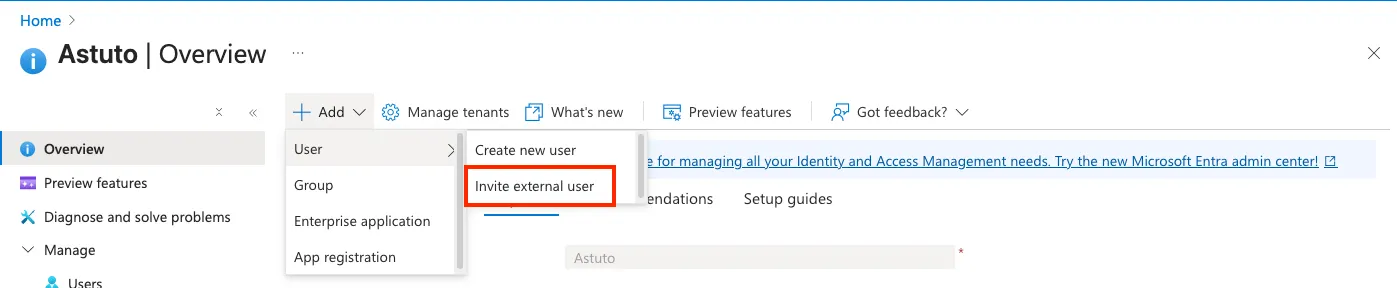
* Click `+ Add` > **User** > **Invite external user**.
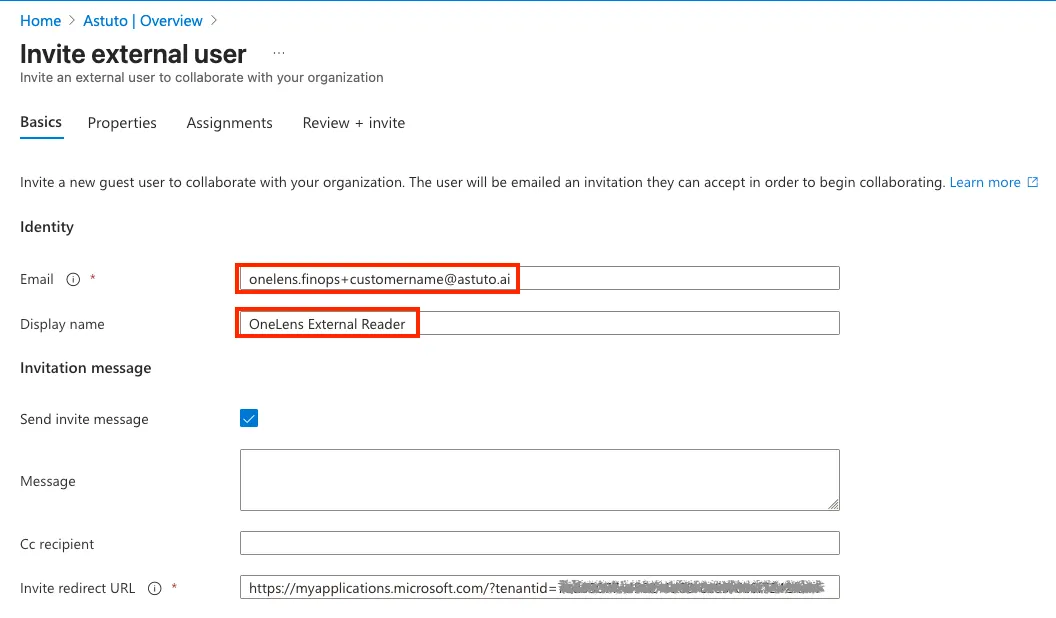
* In the opened Invite external user window, enter the following details:
* **Email**: paste the unique email provided to you by the OneLens team (**onelens.finops+\@astuto.ai**)
* **Display Name**: enter the value **OneLens External Reader.**
* Other options can be left as default.
* Click `Review + invite`.
* From the Azure homepage, search for and open `Management groups`.
* Select your **management group** to be integrated.
* From the left navigation menu, select `Access Control (IAM)`.
* Click `+ Add` and select `Add role assignment`.
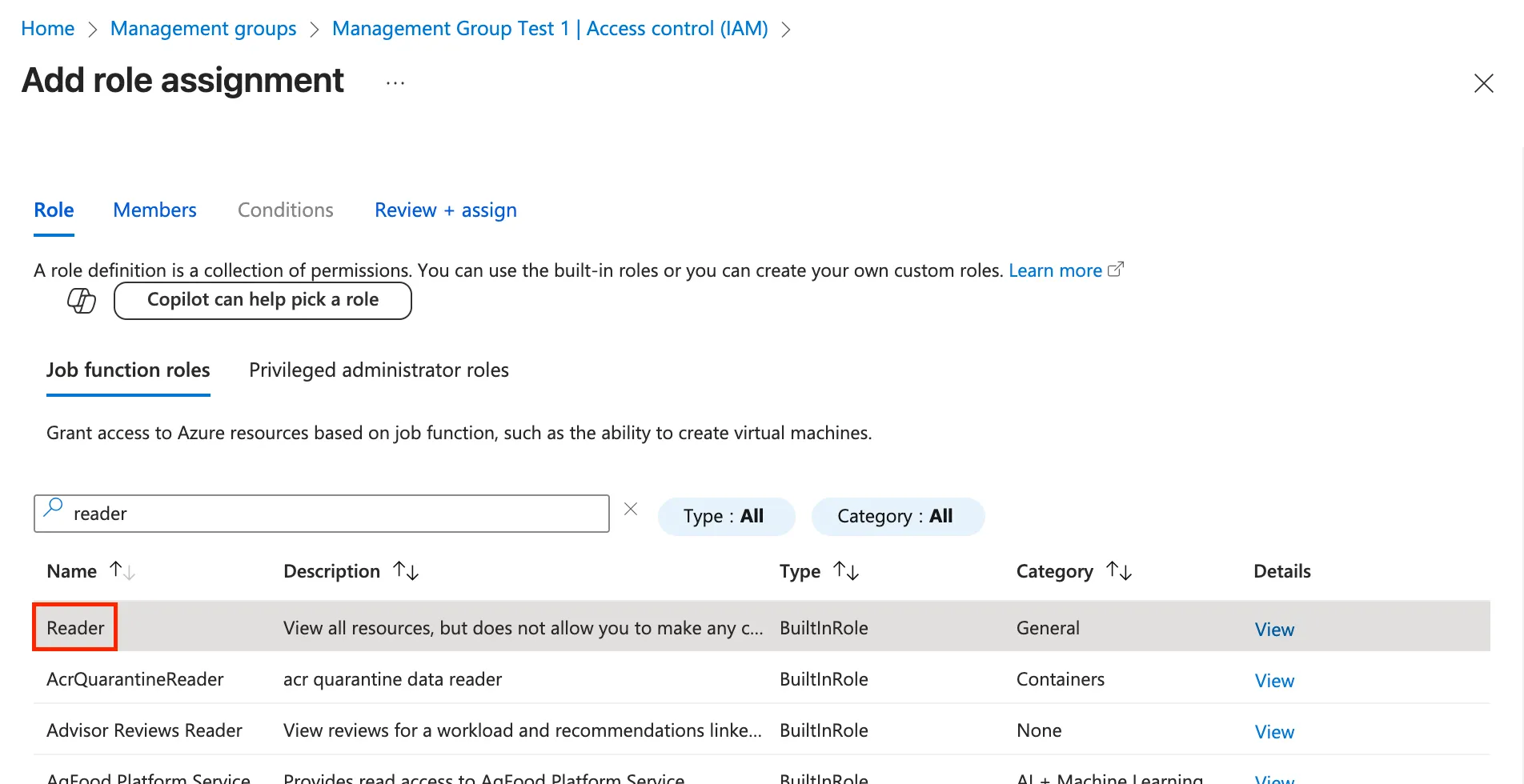
* In the opened **Add a role assignment** window, under the **Job function roles** tab, search for and select `Reader`. Click `Next`.
* Under the **Members** tab, click `+ Select members`, paste the unique email provided to you by the OneLens team (**onelens.finops+\@astuto.ai**).
* Click `Review + assign`.
* Similarly, add `Cost Management Reader` role.
* Using the Azure search bar on the top, search for and select `Storage Accounts`.
* Navigate to the storage account created in step 4.
* In the left navigation pane, select `Access Control (IAM)`.
* Click `+ Add` and select `Add role assignment`.
* In the **Role** tab, search for and select `Storage Blob Data Reader`**.** Click `Next`.
* In the **Members** tab, enter the following:
* Assign access to: **User, group, or service principal**
* Members: click `+ Select members`, paste the unique email provided to you by the OneLens team (**onelens.finops+\@astuto.ai**).
* Click `Review + assign`.
{% endstep %}
{% step %}
### **Update storage account network default action**
Using the Azure CLI, run the following command to set the storage account’s network default action:
```bash
az storage account update \\
--name onelens--billing \\
--resource-group onelens-rg \\
--default-action Allow
```
This command updates the storage account’s network rules so that requests which do not match any explicit network rule are **allowed** (instead of denied). It controls **network access behavior**, not authentication.
{% hint style="info" %}
Public or network-level access being permitted by `--default-action Allow` **does not bypass RBAC**. Entities still require valid credentials, role assignments or SAS to read/write data.
{% endhint %}
{% endstep %}
{% step %}
### Enable cost analysis for AKS (Kubernetes) clusters
{% hint style="info" %}
User enabling cost analysis should have **Owner** or atleast **Contributor** role on the resource groups containing the AKS clusters being onboarded.
Make sure the following resource providers are enabled on the subscriptions in which the AKS clusters being onboarded are present:
1. Microsoft.ContainerService
2. Microsoft.Insights
3. Microsoft.OperationalInsights
{% endhint %}
#### Enabling Cost Analysis on Multiple Cluster Together
For enabling cost analysis on multiple clusters within a resource group, run the following command using Azure CLI:
{% code overflow="wrap" %}
```powershell
for cluster in $(az aks list -g --query "[].name" -o tsv); do
az aks update --resource-group --name $cluster --enable-cost-analysis
done
```
{% endcode %}
where, **\** is to be replaced with the name of the resource group in which your AKS cluster is.
#### Enabling Cost Analysis on Single Cluster
For enabling cost analysis on a single cluster, run the following command using Azure CLI:
{% code overflow="wrap" %}
```sh
az aks update --resource-group --name --enable-cost-analysis
```
{% endcode %}
where, **\** is to be replaced with the name of the resource group in which your AKS cluster is, and **\** is to be replaced with the name of your AKS cluster.
{% hint style="info" %}
AKS cost analysis can only be enabled for clusters on **Standard** or **Premium** pricing tiers. It is not available on the Free tier.
You can check an AKS cluster’s tier with the below command (using Azure CLI):
{% code overflow="wrap" %}
```sh
az aks show --resource-group --name --query "sku.tier"
```
{% endcode %}
{% endhint %}
{% endstep %}
{% step %}
### Enable Tag Inheritance
Tags are widely used to group costs to align with different business units, engineering environments, cost departments, and so on. Tags provide the visibility needed for businesses to manage and allocate costs across the different groups. When Tag inheritance is enabled, it applies billing, resource group, and subscription tags to child resource usage records.
Follow the below guide from Microsoft to enable Tag inheritance for MCA/MOSP/EA accounts at billing account or subscription-level
{% embed url="" %}
{% endstep %}
{% endstepper %}
{% hint style="success" %}
**You have now ****successfully**** integrated your Azure environment with OneLens.**
\
**Please share the following values to the OneLens team to facilitate the connection on our end:**
* *App Registration Tenant (Directory) ID*
* *App Registration Client (Application) ID*
* *App Registration Client Secret Value*
* *App Registration Client Secret ID*
* *Storage Account name*
* *Container name*
* *Subscription ID(s) / Resource Group ID(s) / Management Group ID(s)*
{% endhint %}
---
# Agent Instructions
This documentation is published with GitBook. GitBook is the documentation platform designed so that both humans and AI agents can read, navigate, and reason over technical content effectively. Learn more at gitbook.com.
## Querying This Documentation
If you need additional information that is not directly available in this page, you can query the documentation dynamically by asking a question.
Perform an HTTP GET request on the current page URL with the `ask` query parameter, and the optional `goal` query parameter:
```
GET https://docs.onelens.cloud/integrations/cloud-and-cost-sources/connecting-to-azure/at-management-group.md?ask=&goal=
```
`ask` is the immediate question: it should be specific, self-contained, and written in natural language.
`goal` is optional and describes the broader end goal you are ultimately trying to accomplish on behalf of the user. GitBook uses it to tailor the answer towards what is most useful for that goal.
The response will contain a direct answer to the question and relevant excerpts and sources from the documentation.
Use this mechanism when the answer is not explicitly present in the current page, you need clarification or additional context, or you want to retrieve related documentation sections.